Tag: Resource list
-
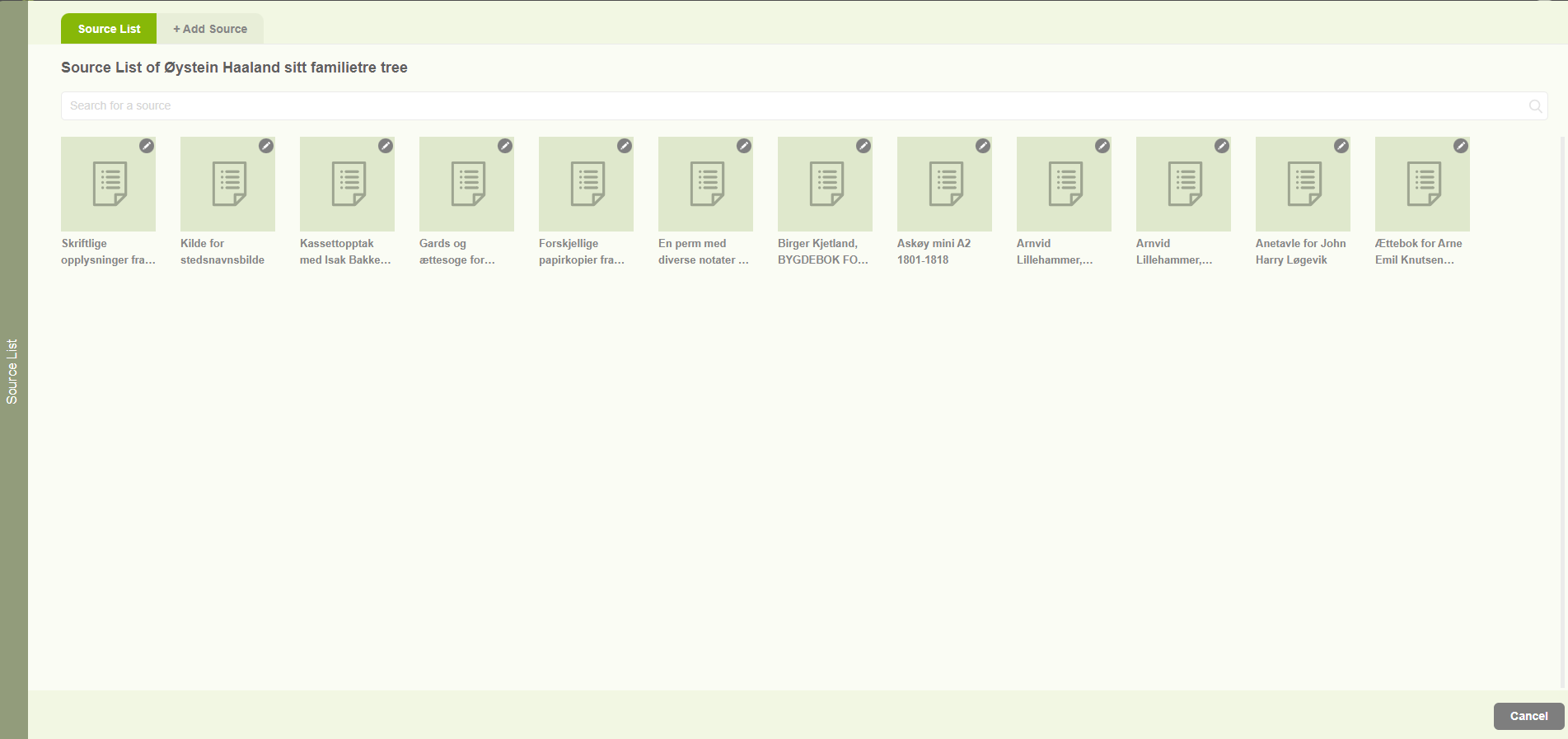
Sources list
1. Users are able to navigate to the Source list by clicking on the “Source List” option in the Resource menu. 2. Then users can view all the sources connected with the family project in the “Source list” tab. 3. Users can search for sources by using the search option. 4. The other tab on…
-
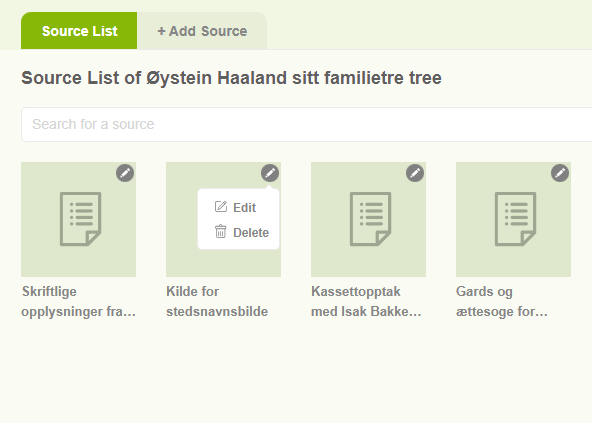
Edit sources
1. Click on the “Resource” tab and choose “Source list” 2. Then it will display the already added sources. 3. Then clicking on the pencil icon of a specific source two options will be displayed. 4. The first one is Edit. 5. The second one is Delete. 6. Users can edit a source by clicking…
-
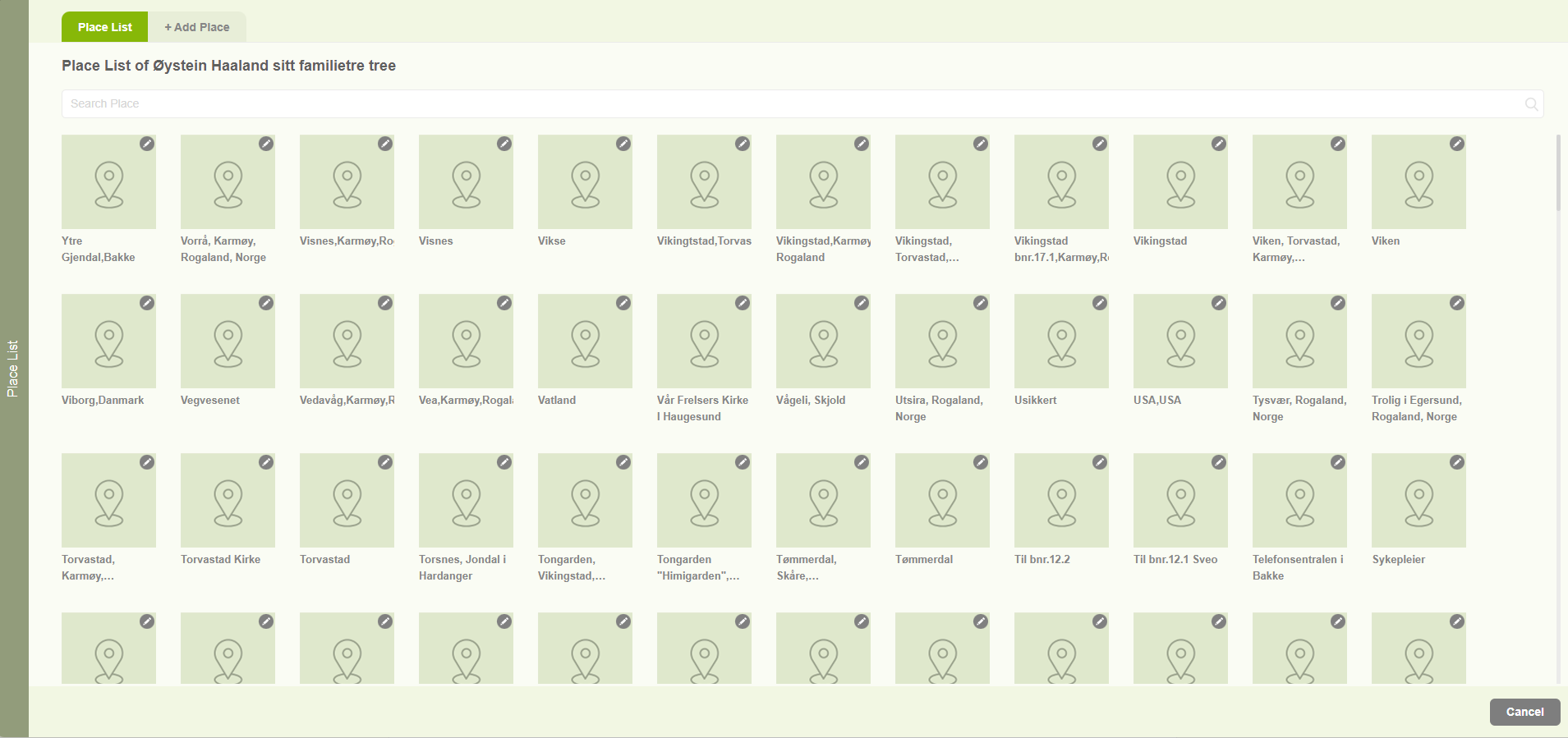
Place editor
1. Users can navigate to the place list by clicking on the “Place Editor” option in the “Resources” menu. 2. Then users can view all the places connected with the family project. 3. Users can search the existing places by the search option. 4. Users can add a new place from the “Add Place” tab.
-

Edit / Delete places
1. When clicking on the pencil icon of a specific location, two options will be displayed. 2. One for editing the location. 3. Another one for Delete the location. 4. Users are able to edit a location by clicking on the “Edit” option. Then the user will be navigated to the “Add Place Name” tab…
-
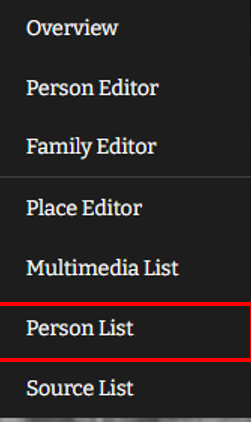
Member list
1. Users can view the people list by clicking on the “Person List” option from the “Resources” menu. 2. The person list will be opened with all the available members of the family project. 3. Users are able to search for a particular member using the search option available at the top of the page.