Tag: Multimedia
-

Add family profile image
1. Users can manage family profile images using different options in the image edit feature. Click on that pencil icon. 2. Initially, users can upload a new image or select one from the gallery. 3. If the user is going to upload an image from the gallery, a popup will be opened with the existing…
-
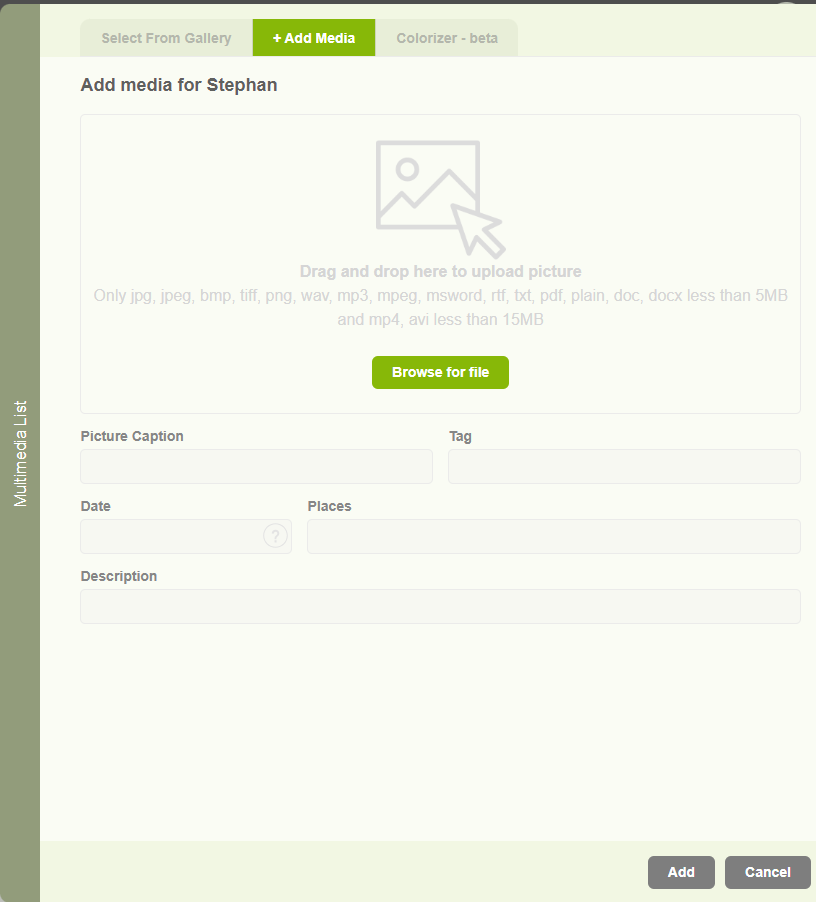
Add media for a family
1. Users can add images for family profiles, but if they need to upload documents, videos, and audio to their profile, it is enabled with the other media section. 2. Users can upload different media types as below. 3. Same as the image upload, user can select an available other media type from the gallery.
-

Profile image options
1. Users can manage profile images using different options in the image edit feature. Click on the Pencil icon. 2. Initially, users can upload a new image by clicking “Upload” The user can upload images from a local machine. 3. If the user is going to upload an image from a local machine, the “Add…
-
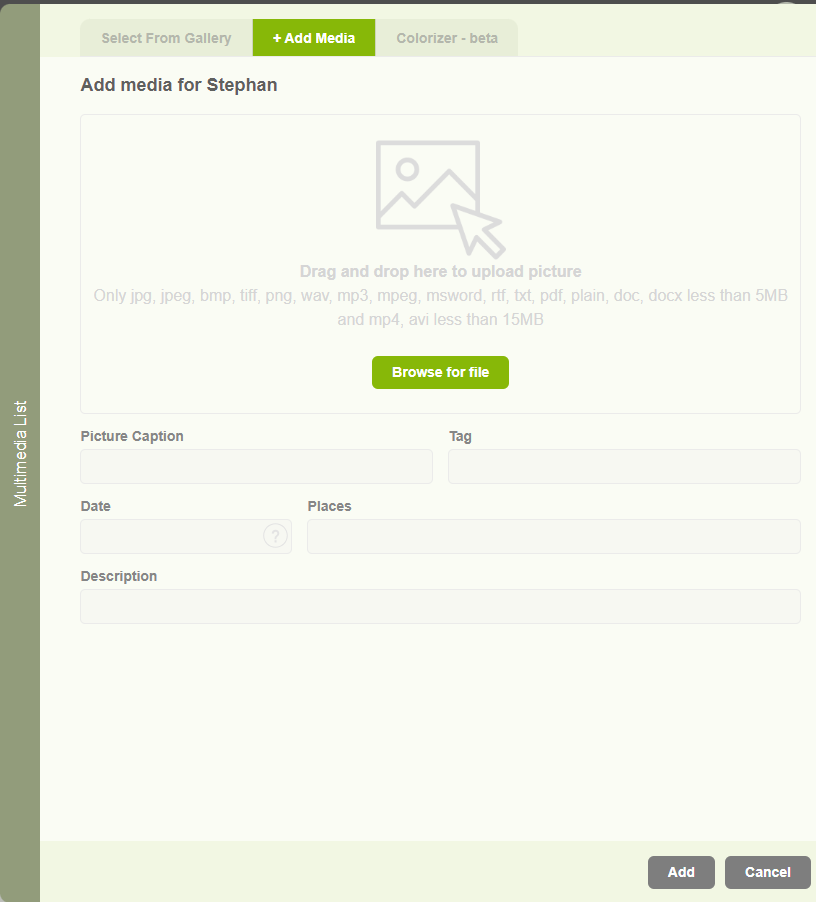
Add other media
1. Users are able to add images to their profile, but if they need to upload documents, videos, and audio to their profile, it is enabled in the other media section. 2. Users can upload different media types as below. 3. Same as in image upload user can select available other media types from the…
-

Image colorization
1. Click on the “Resources” tab. 2. Then select “Multimedia List” on that list. 3. Clicking on the pencil icon on the image that the user wants to colorize. 4. Then click on the “Colorize” option. 5. When clicking on the “Colorize” option, the user will be navigated to the colorize tab with the selected…
-
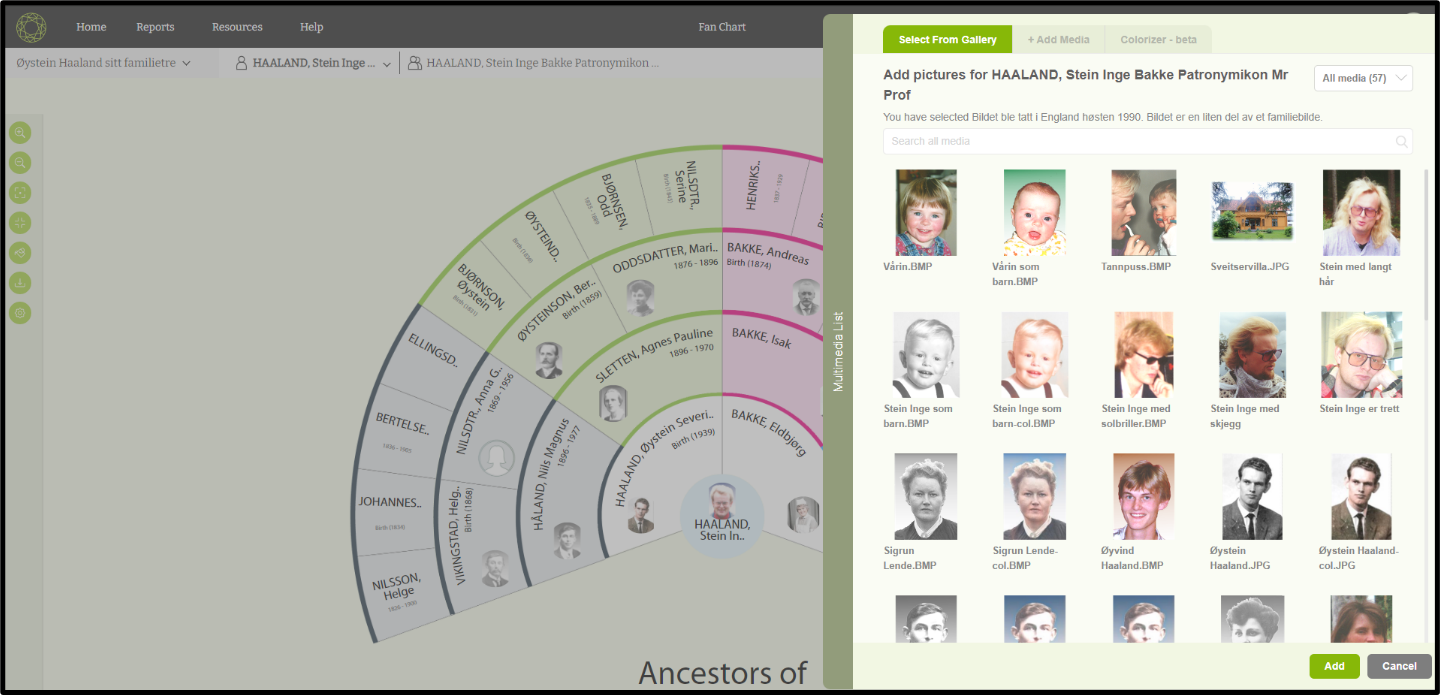
Change the profile image
Users can change a profile image through the ‘Fan chart’ page. 1. Click on the profile image of a member that needs to be changed. 2. Then a popup will open with available images. 3. Then the user can select an image that needs to be reset. 4. After selecting the image click on the…
-
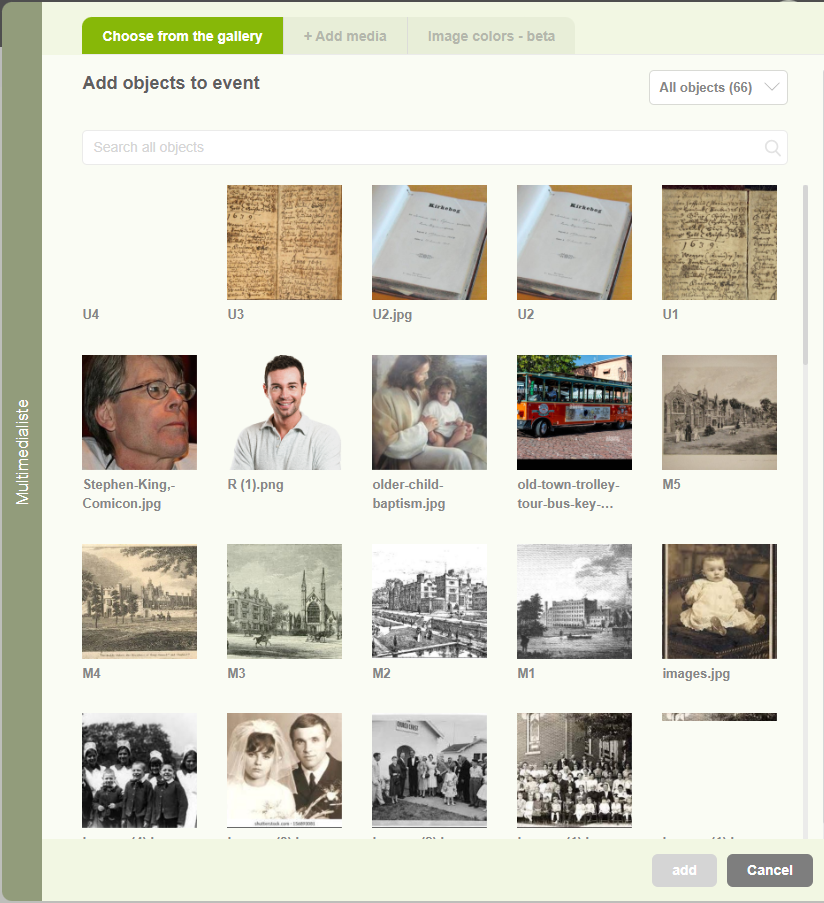
Enhance events with multimedia content
1. Users can add multimedia content by selecting the “Add” button (+). 2. Upon clicking the “Add Multimedia” button, a pop-up window will appear presenting two tabs. The first tab, titled “Choose from Gallery,” allows users to browse existing media files and select one. 3. The second tab, labeled “+ Add media,” enables users to…
-
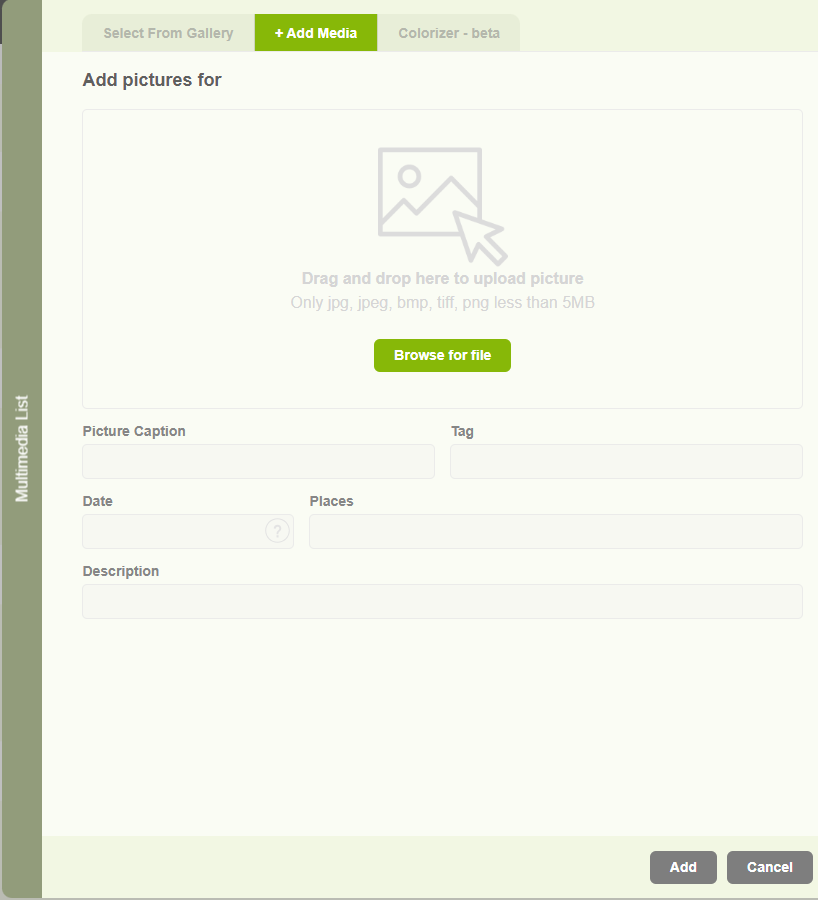
Add a profile image to a member
Clicking on the dummy image. The multimedia popup will be coming up. Add an existing image 01) Users can select an existing image from the media gallery. 02) Then click the ‘Add’ button to add the selected image to the member. Upload a new image 01) If the user wants to upload a new image,…
-
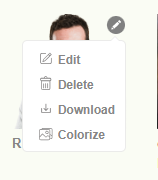
Multimedia options (Edit, Delete, Download)
1. When clicking on the “pencil” icon on the image it will display different options. 2. To edit. 3. To delete 4. To Download the file. 5. And to Colorize the image. 6. When clicking on the edit option, the user will be navigated to the “Add Media” tab with the selected image. 7. When…
-

Multimedia list
1. Users can navigate to the multimedia list through the “Multimedia list” option in the “Resources” menu. 2. There are three tabs on the multimedia page. When clicking on the “Multimedia list” tab, the user can view all the media files available for the project. 3. Users can search multimedia by using the search option…