Tag: Member list
-
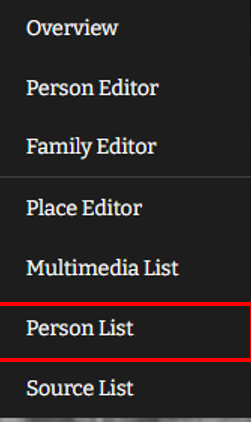
Member list
1. Users can view the people list by clicking on the “Person List” option from the “Resources” menu. 2. The person list will be opened with all the available members of the family project. 3. Users are able to search for a particular member using the search option available at the top of the page.
-
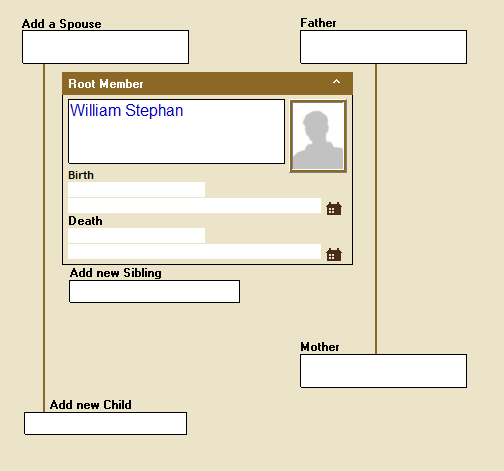
Add new members to the tree by overview.
The first time you start, all the fields in the family tree will be empty. To expand the tree, first select the field where you want to add a new person. “Select” means to click once with the left mouse button. There are different color types for a selected field: A light green background with…
-
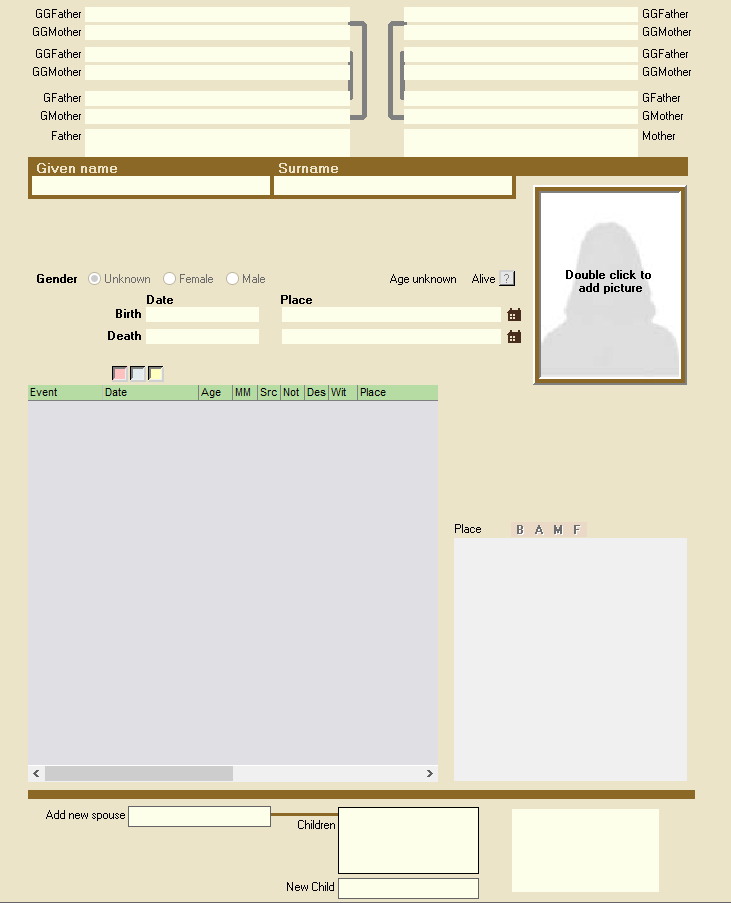
Navigate to the Member editor
The personal form can be opened in several different ways: By clicking on the button in the row of buttons that shows the image of a person, 2. By right-clicking on a person in the Overview Form 3. By double-clicking on a child in the Family Form…