Tag: Member editor
-
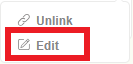
Edit family members details
1. Users can edit a family member’s details by clicking on the “pencil” icon of the relevant person 2. Then click the “edit” option from the displayed options. 3. When clicking on the “Edit” person edit tab will be opened with the relevant person’s data.
-
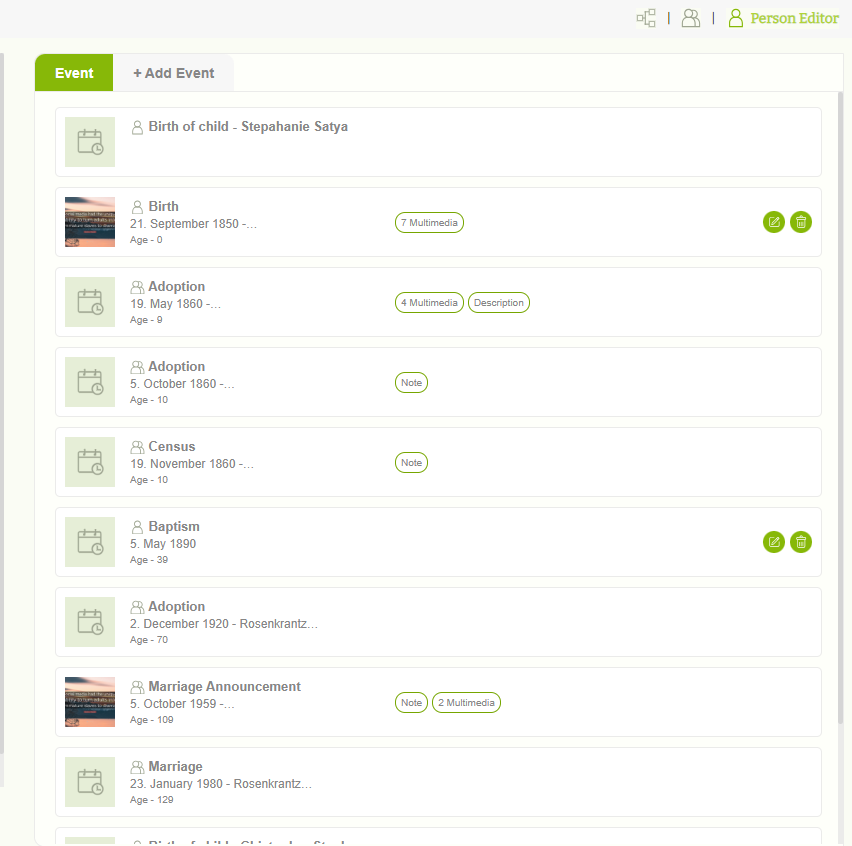
View personal events
Users can view already added events in the “Event” tab.
-
Profile image options
1. Users can manage profile images using different options in the image edit feature. Click on the Pencil icon. 2. Initially, users can upload a new image by clicking “Upload” The user can upload images from a local machine. 3. If the user is going to upload an image from a local machine, the “Add…
-
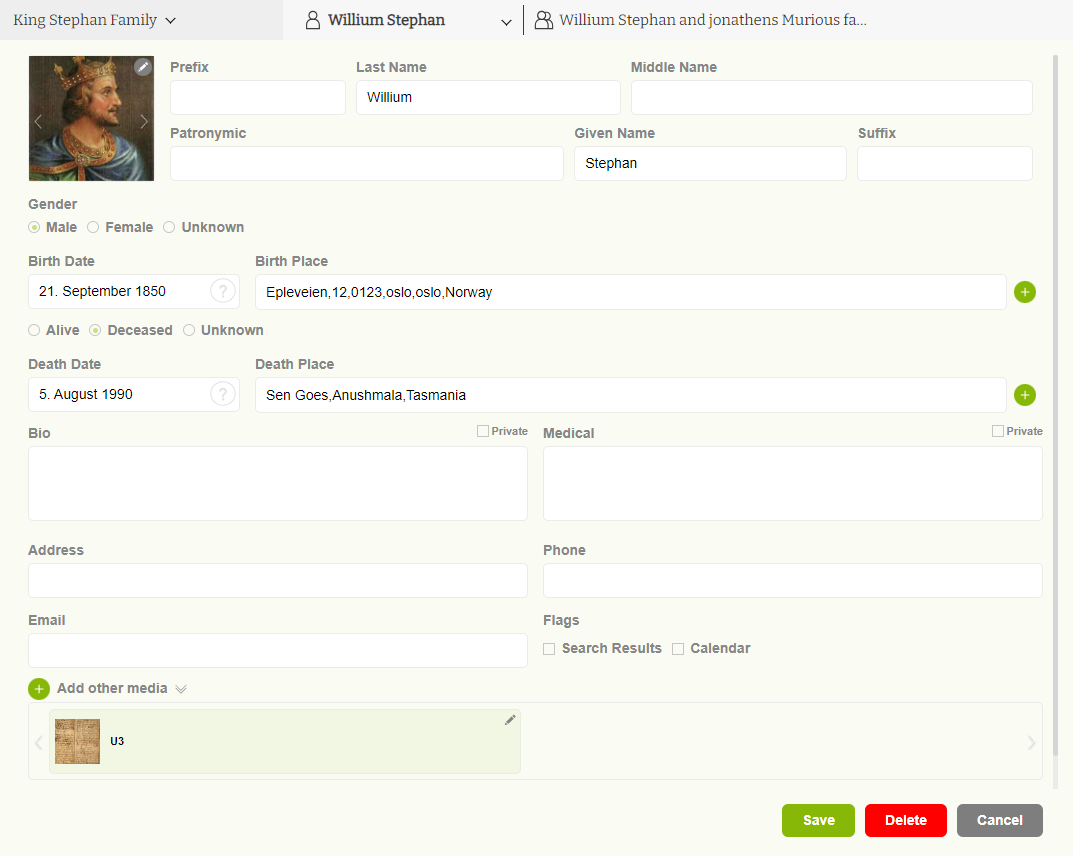
Member editor overview
1. Users can update all their personal information on the “ Member editor” page. 2. User can add their ‘First Name’, ‘Middle name’, ‘Last name’, ‘Patronymic name’,’ Prefix’ and ‘suffix’, Sex, Birthdate, Birthplace, Death date, Deathplace, Biography, Address, Medical Records, and Media files.
-
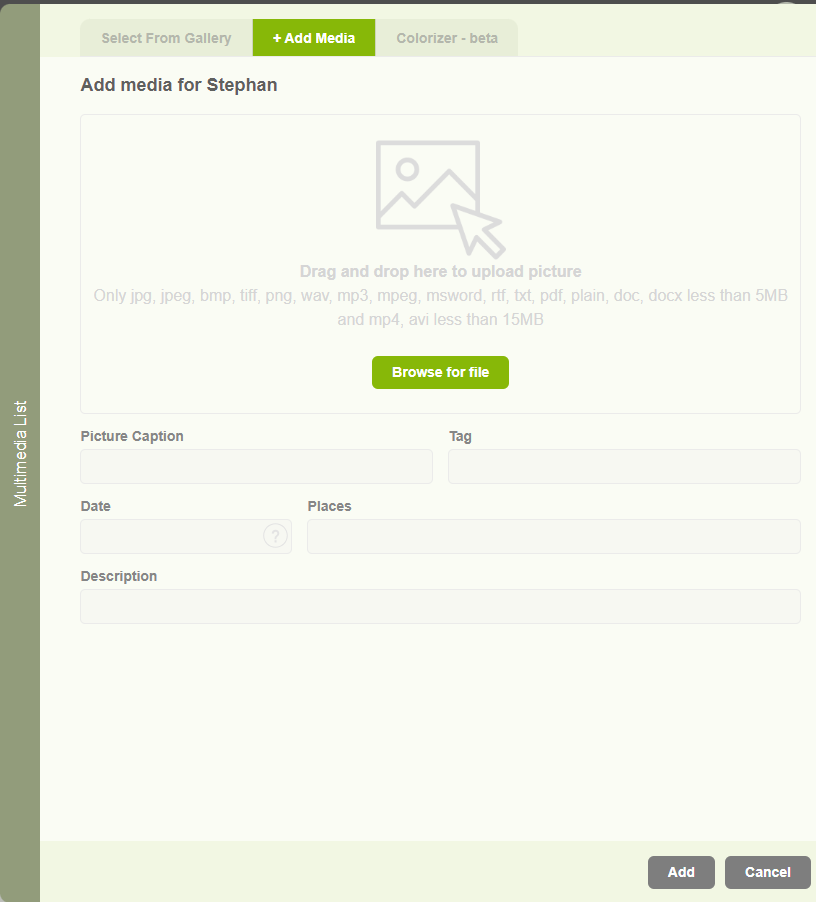
Add other media
1. Users are able to add images to their profile, but if they need to upload documents, videos, and audio to their profile, it is enabled in the other media section. 2. Users can upload different media types as below. 3. Same as in image upload user can select available other media types from the…
-
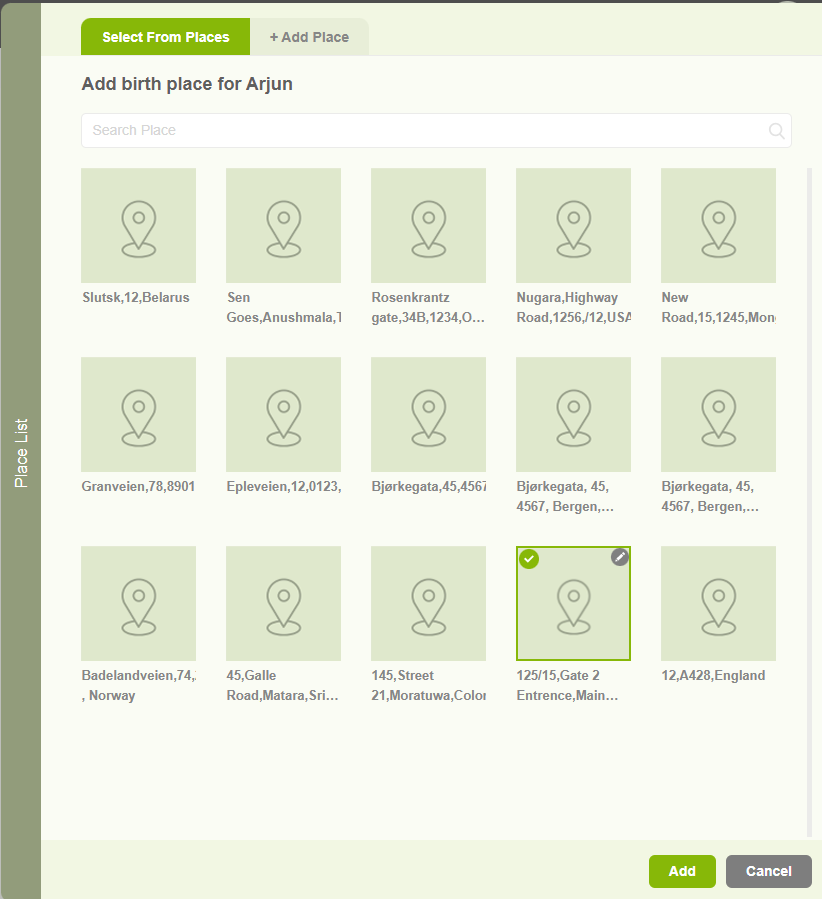
Add Birthplace and Deathplace
1. Users can add a Birthplace or a deathplace by clicking on the “+” icon in the member editor page 2. When clicking on the add location button, a popup will appear with two tabs. The First one is to select an existing place. 3. The other tab “Add Place” tab is to add a…
-
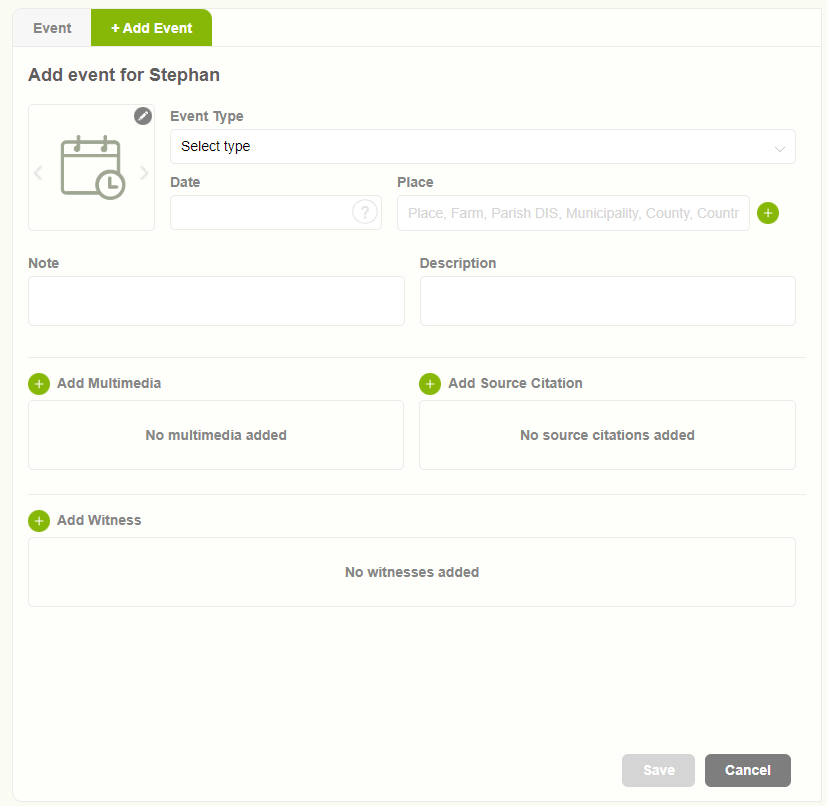
Add personal events
1. Users can add a personal event by clicking on the “Add event” tab in the right pane of the ‘Member editor’ page 2. When clicking on the Add Event tab, the user can view the form to enter details. 3. Add all the mandatory data and click on the “Save” button to store the…
-
Editors
Embla Family Treasures provides three editors to create and edit personal details, family details, and family trees (including ascendants and descendants). 1. Users can navigate to editors through the “Resources” menu option 2. Tree editor – Users can create their family tree by adding ancestors and descendants 3. Member editor – Users can edit a…
-

Member editor – Overview
The personal form can be opened in several different ways: By clicking on the button on the row of buttons that shows the image of a person By right-clicking on a person in the Overview Form By double-clicking on a child in the Family Form By double-clicking on one of the parents in the Family…
-
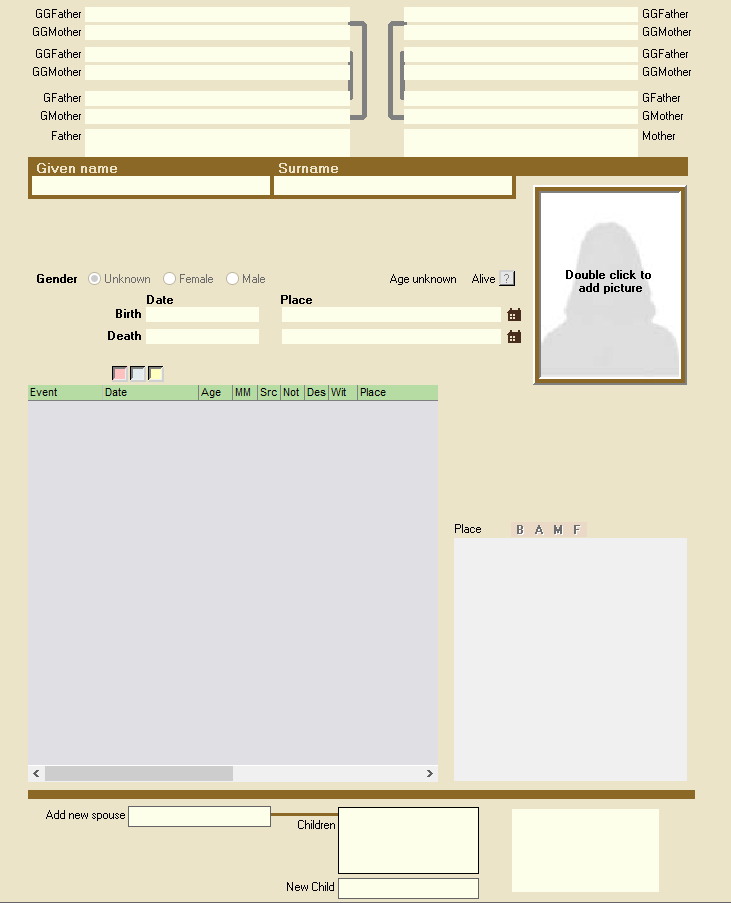
Navigate to the Member editor
The personal form can be opened in several different ways: By clicking on the button in the row of buttons that shows the image of a person, 2. By right-clicking on a person in the Overview Form 3. By double-clicking on a child in the Family Form…