Tag: Create family tree
-
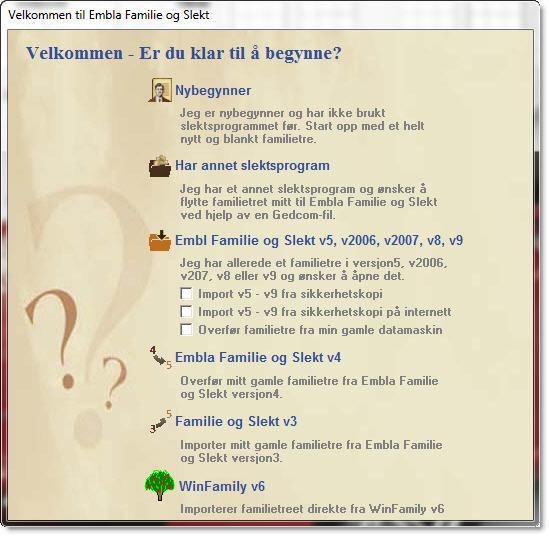
How to get started
Menu selection at first start-up When the program is started for the first time, you will be presented with a start menu. You will only see this menu at the very first start-up. New user – start with a new family tree for the very first time. Has another family program – and wants to…
-
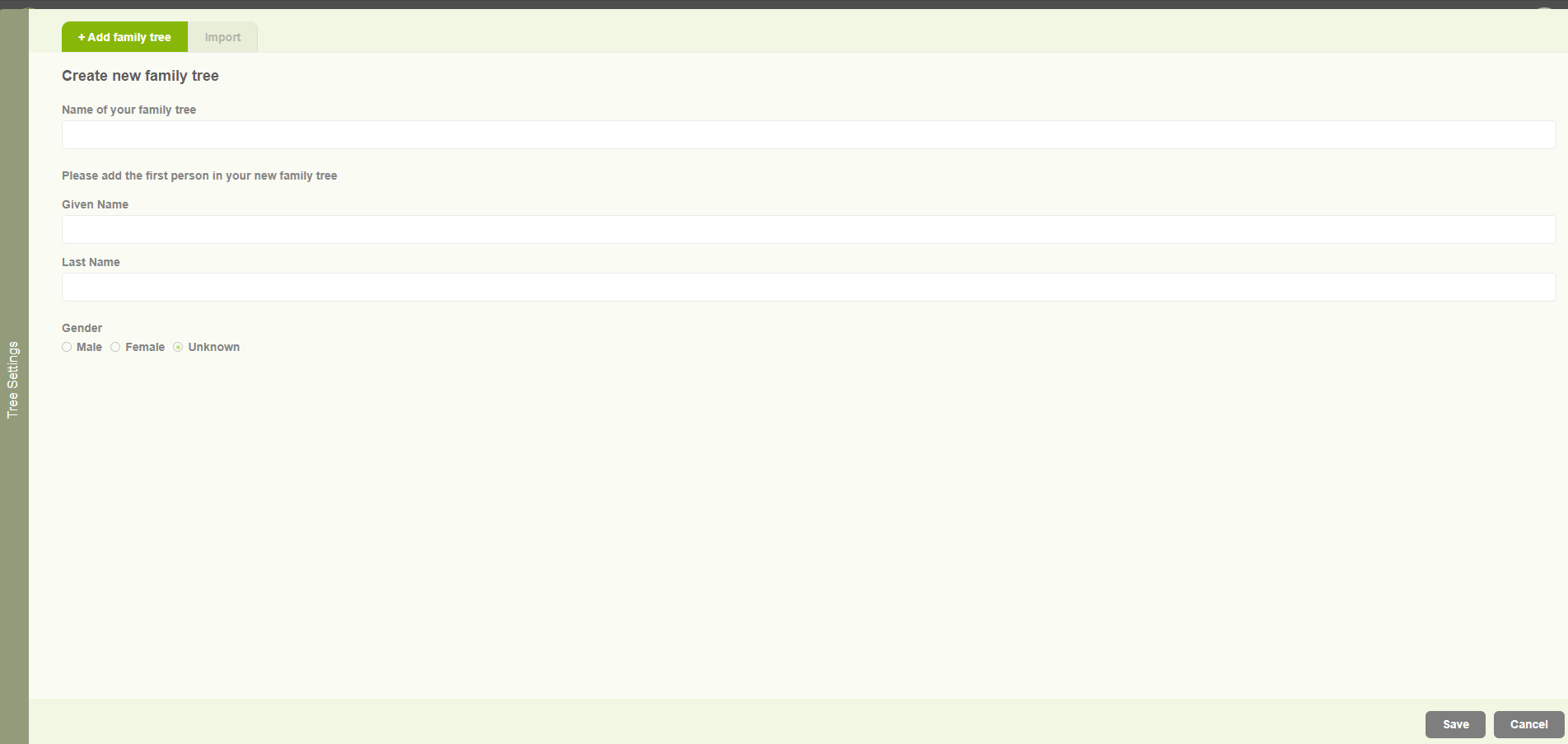
Create family tree for existing user
1. Existing users browse http://embla.no/ from their browsers. Then the user can input their email & password to log into the system account. 2. When the user enters the correct credentials, the user will navigate to the user account page and display the username in the window. 3. Then the user can click on the…
-
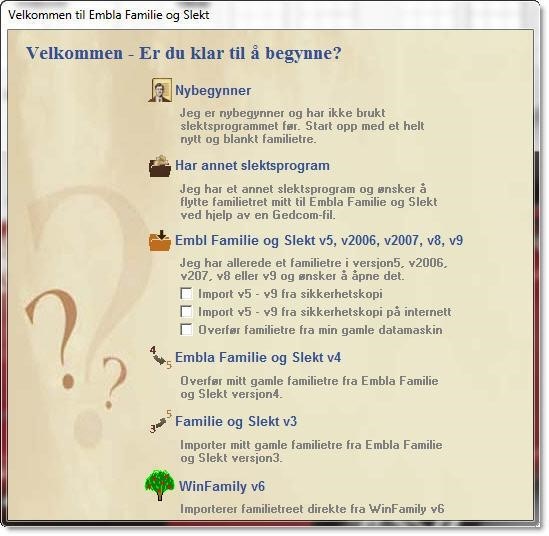
New users create a family tree for the very first time
When the program is started for the first time, you will be presented with a start menu. You will only see this menu at the very first start-up. New user – start with a new family tree for the very first time. Has another family program – and wants to transfer via Gedcom. Has a…
-
Create a family tree after the first tree created
Open the “Embla Familie og Slekt v9” application. Click the “File” option and then click the “New Family project” option in the drop-down list. 3. Add a name for the family and click the “OK” button. 4. If the user adds invalid characters for the name, then display that pop-up. You can only use letters,…
-
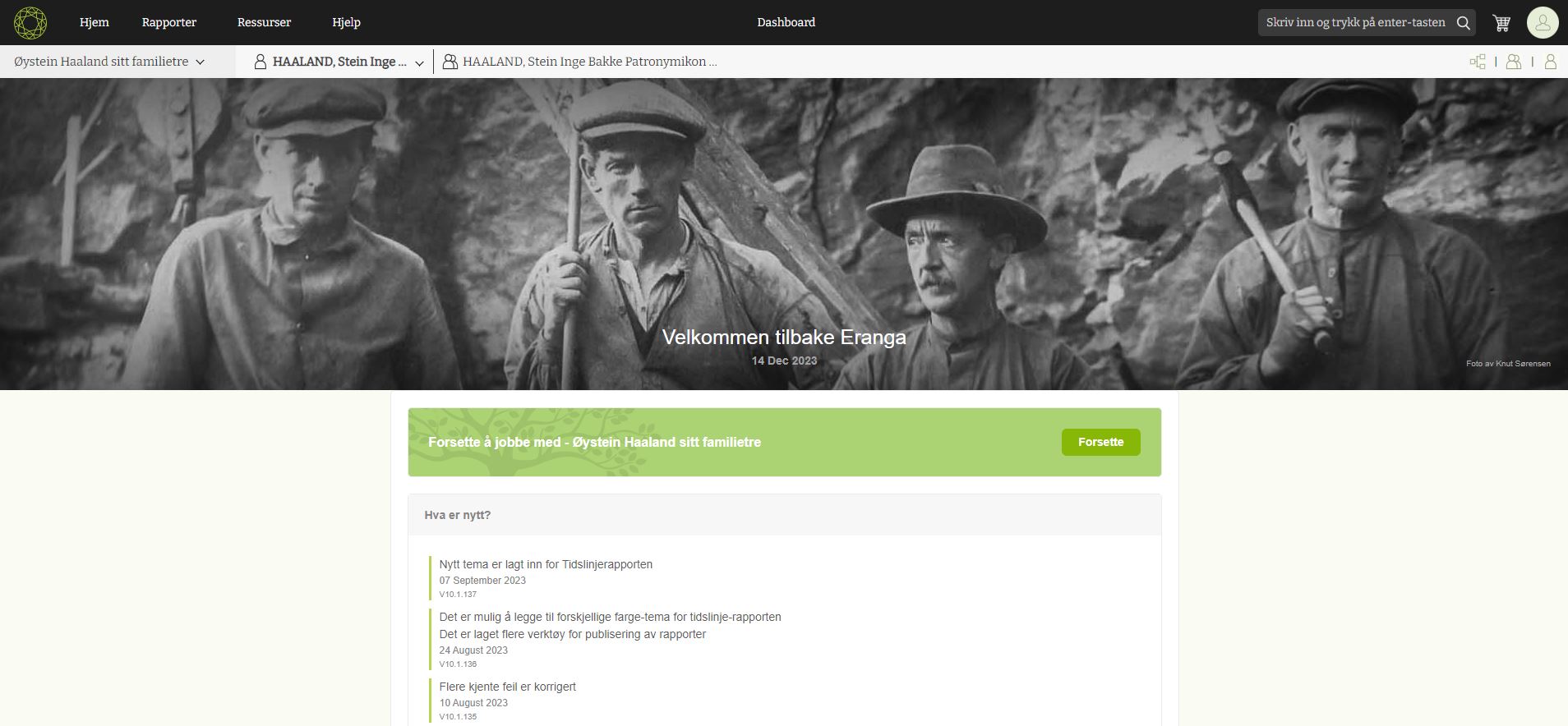
Getting started as a new user
New users browse Embla Norsk Familiehistorie from their browsers. Then the user can input their email and password to log into the account. 2. When the user enters the correct credentials, the user will navigate to the user account page and display the username in the window. 3. Then the user can click on the…