Mindblown: a blog about philosophy.
-
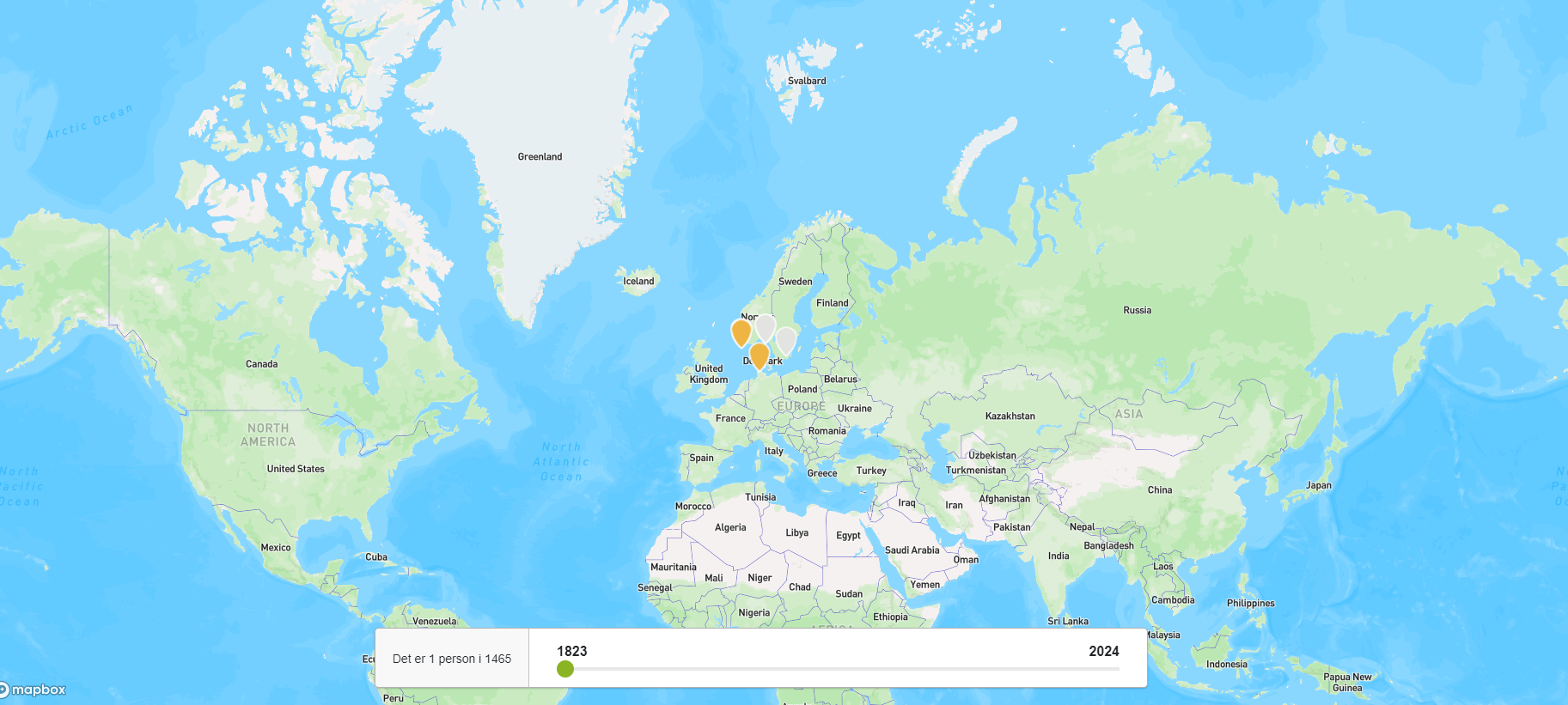
Map Report
The interactive map report provides users with a dynamic visual representation of the global distribution of family members within a family tree. By utilizing different coloured pins, each representing a specific gender, users can gain valuable insights into their ancestors’ geographical spread across various regions. Blue pins denote males, red pins signify females, while orange…
-
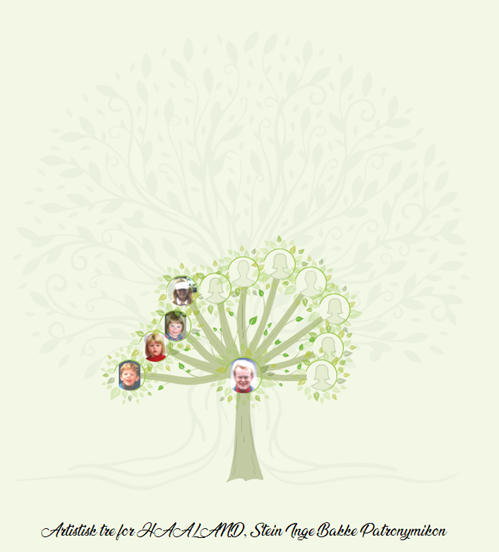
Artistic tree
The Artistic Tree visually presents the descendants of the root person. Each node represents a descendant, interconnected by branches
-
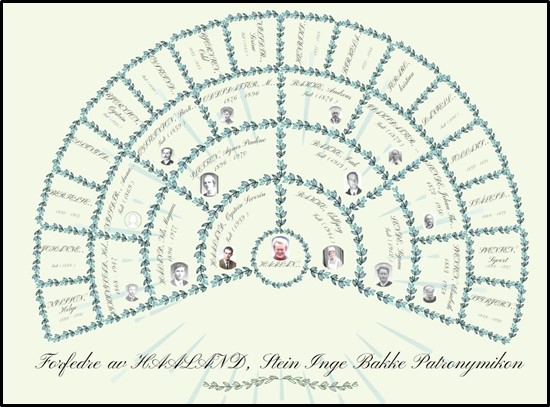
Fan chart (leaves)
01) The Fan Chart report is rendered artistically, akin to the traditional fan chart layout. Similar to the standard ‘fan chart’ report, this variant showcases the ancestors of the root person. 02) Users can access the fan chart by selecting the ‘Anesikel (blader)’ option from the report’s menu 03) The name of the root member…
-
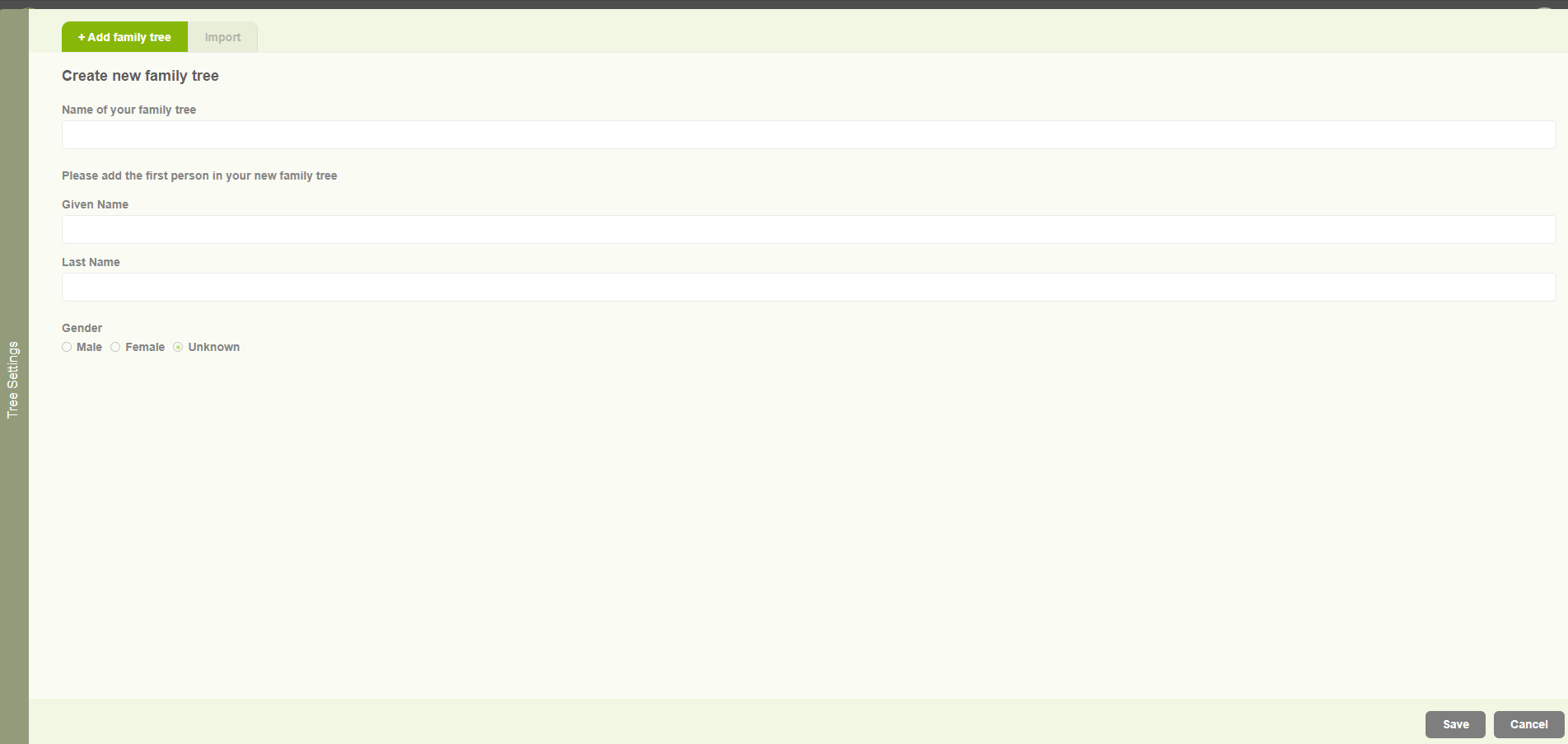
Create family tree for existing user
1. Existing users browse http://embla.no/ from their browsers. Then the user can input their email & password to log into the system account. 2. When the user enters the correct credentials, the user will navigate to the user account page and display the username in the window. 3. Then the user can click on the…
-
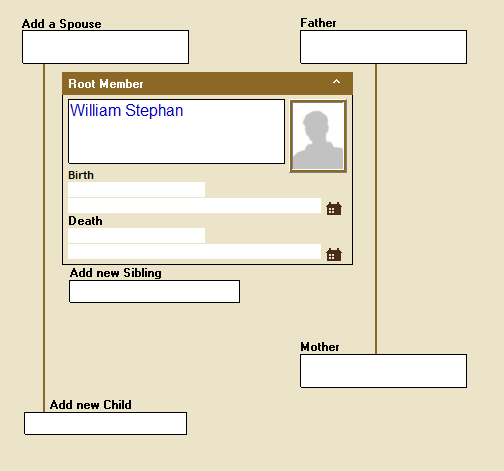
Add new members to the tree by overview.
The first time you start, all the fields in the family tree will be empty. To expand the tree, first select the field where you want to add a new person. “Select” means to click once with the left mouse button. There are different color types for a selected field: A light green background with…
-
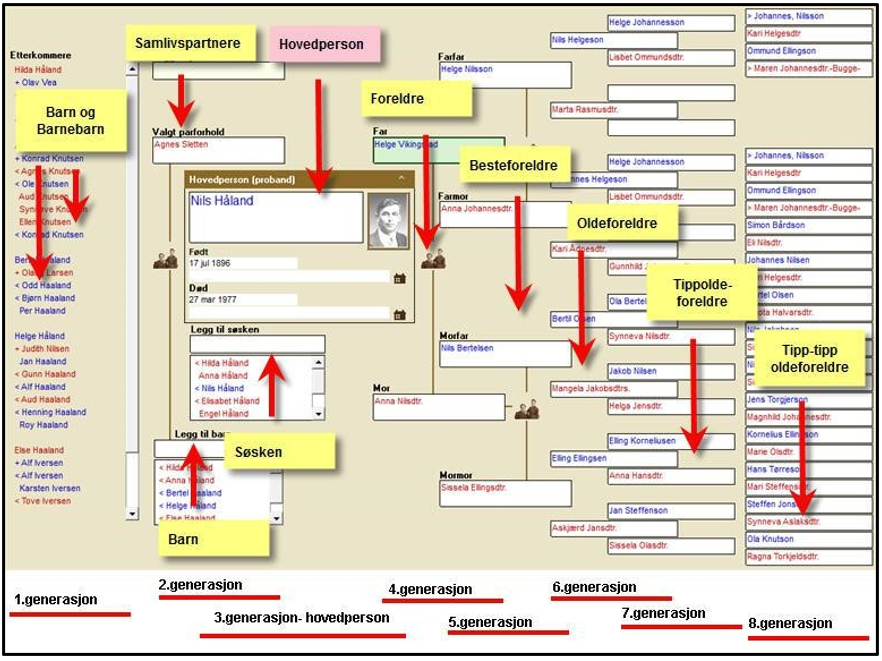
Navigate to the tree overview
1. Open the “Embla Familie og Slekt v9” application. The overview form opens by clicking on the button with the image of a tree. 2. In the Overview form, you can see six generations with ancestors and three generations with descendants, as well as all siblings and cohabiting partners/spouses/cohabitants etc. In total, you can see…
-
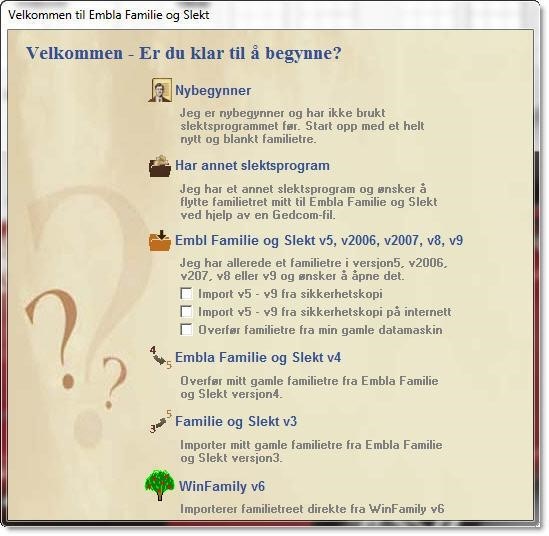
New users create a family tree for the very first time
When the program is started for the first time, you will be presented with a start menu. You will only see this menu at the very first start-up. New user – start with a new family tree for the very first time. Has another family program – and wants to transfer via Gedcom. Has a…
-
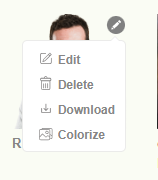
Multimedia options (Edit, Delete, Download)
1. When clicking on the “pencil” icon on the image it will display different options. 2. To edit. 3. To delete 4. To Download the file. 5. And to Colorize the image. 6. When clicking on the edit option, the user will be navigated to the “Add Media” tab with the selected image. 7. When…
-
Create a family tree after the first tree created
Open the “Embla Familie og Slekt v9” application. Click the “File” option and then click the “New Family project” option in the drop-down list. 3. Add a name for the family and click the “OK” button. 4. If the user adds invalid characters for the name, then display that pop-up. You can only use letters,…
-
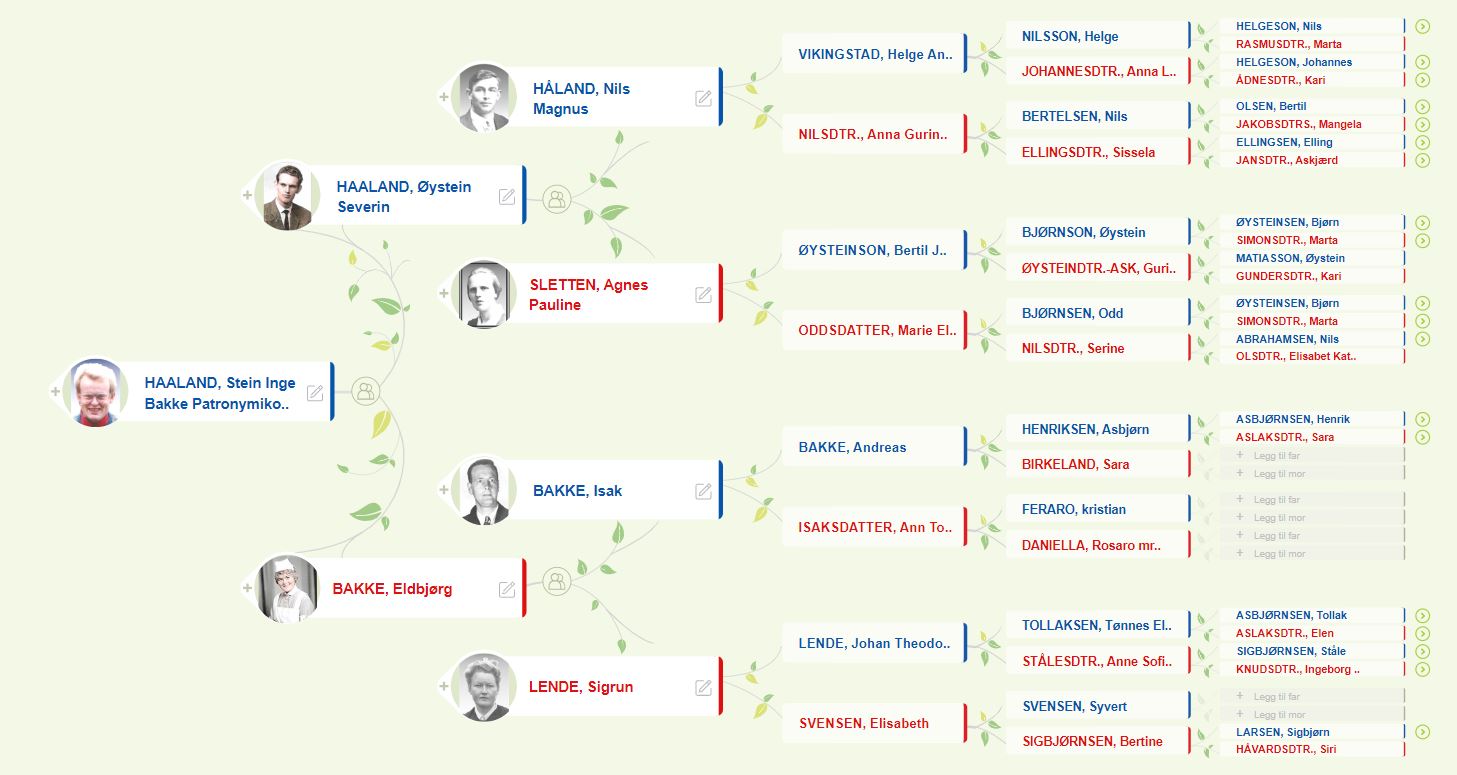
Add parents
1. Users can add parents by clicking on the parents’ nodes in the tree editor. 2. Once the user clicks on one of the parent nodes, a popup will appear to add the parents’ first and last names. 3. Clicking on the save button lets the user proceed. 4. If the user wants to cancel…
-

Multimedia list
1. Users can navigate to the multimedia list through the “Multimedia list” option in the “Resources” menu. 2. There are three tabs on the multimedia page. When clicking on the “Multimedia list” tab, the user can view all the media files available for the project. 3. Users can search multimedia by using the search option…
-
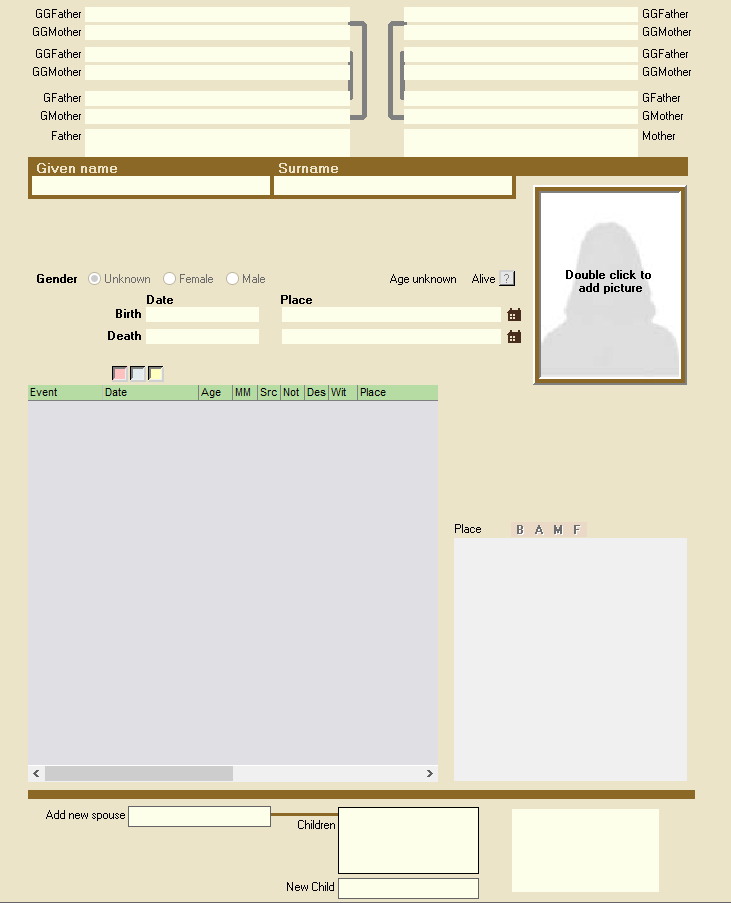
Navigate to the Member editor
The personal form can be opened in several different ways: By clicking on the button in the row of buttons that shows the image of a person, 2. By right-clicking on a person in the Overview Form 3. By double-clicking on a child in the Family Form…
-
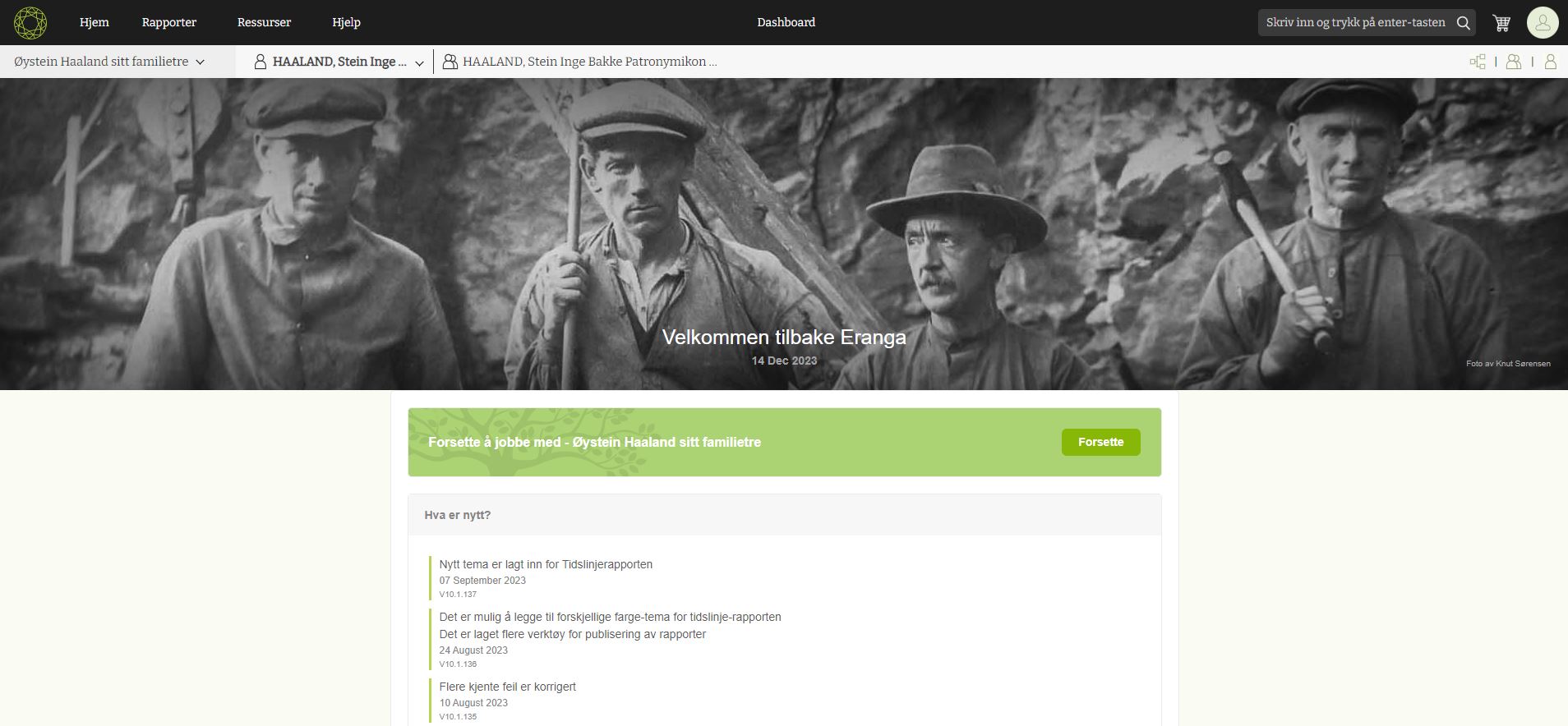
Getting started as a new user
New users browse Embla Norsk Familiehistorie from their browsers. Then the user can input their email and password to log into the account. 2. When the user enters the correct credentials, the user will navigate to the user account page and display the username in the window. 3. Then the user can click on the…
-
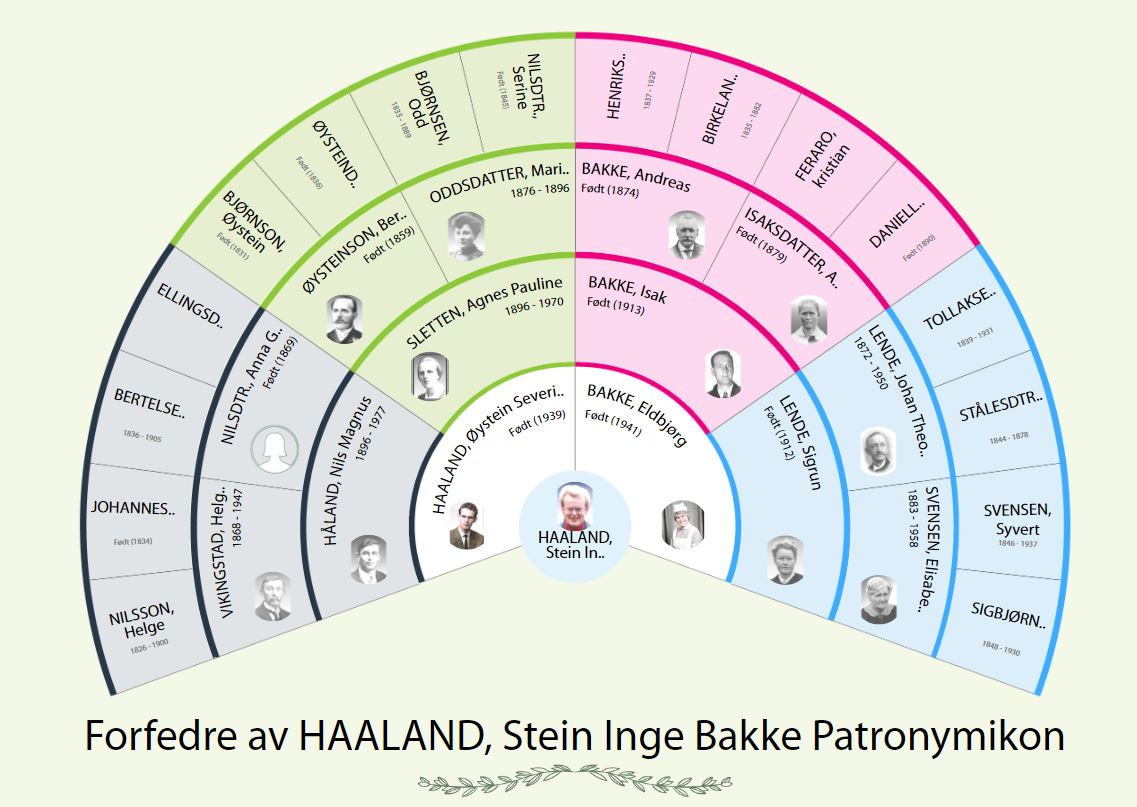
Change the root person from the fan chart.
When clicking on the name of a person, he or she will become the root person of the fan chart. 1) Click on the name of the selected person. 2) Then click on the “Start from here” option in the pop-up. 3) Then the selected person comes to the center as a root person.
Got any book recommendations?