Category: Tree editor
-
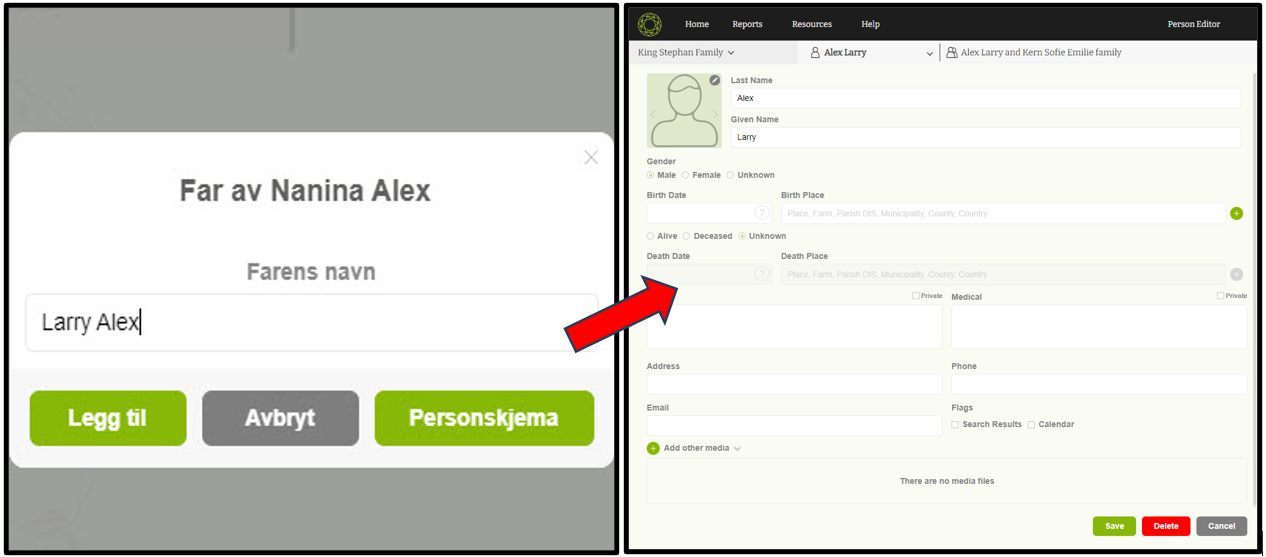
Navigate to ‘Member editor’
01) When the user clicks on one of the parent nodes, a popup will appear to add the parents’ first and last names. As the user starts typing a name, the ‘Save’ and ‘Member editor’ buttons will become enabled 02) Click on the “Member editor” button. 03) Then the user will be navigating to…
-
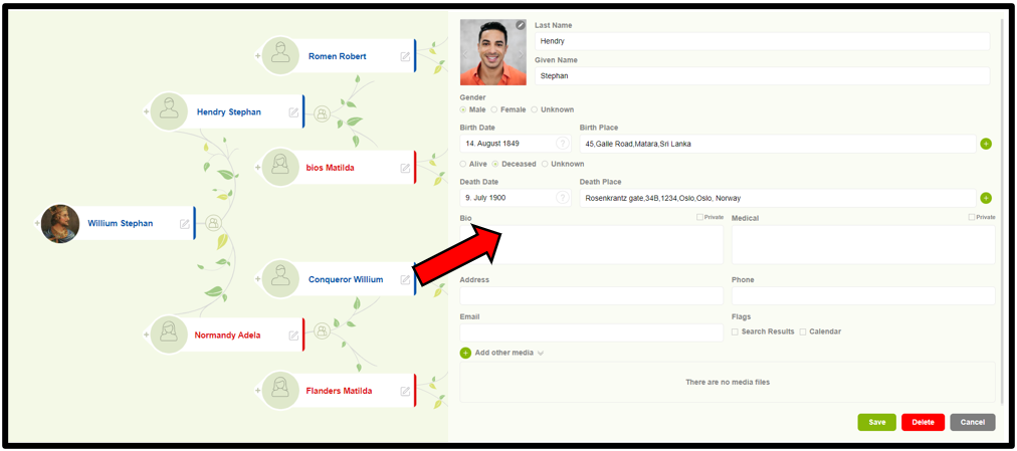
Edit a member details
01) Members can edit a member’s details by clicking on the “Edit” icon (pencil) in the nodes. Once the edit icon is clicked, the “Member editor” page of the respective person will be displayed 02) Users are now able to update the member details and save.
-
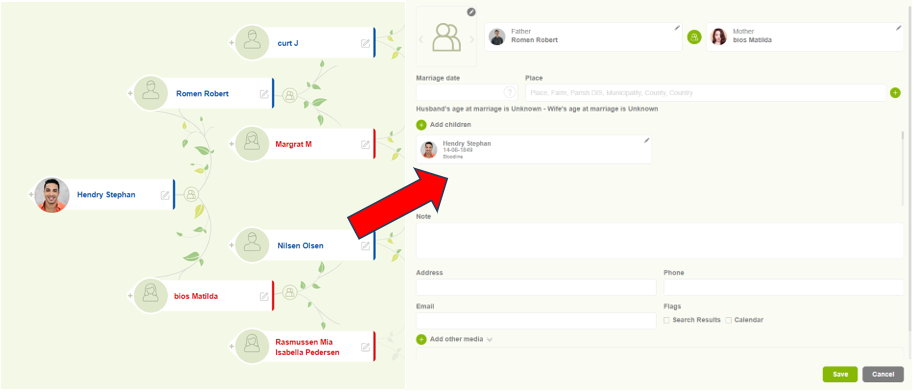
Navigate to Family editor
01) Users can navigate to the ‘Family editor’ by clicking on the “family” icon against each person in the tree editor. Here, the user can view his parent’s family. 02) When clicking on the family icon, the user will be navigated to his parent family editor view, as shown below.
-
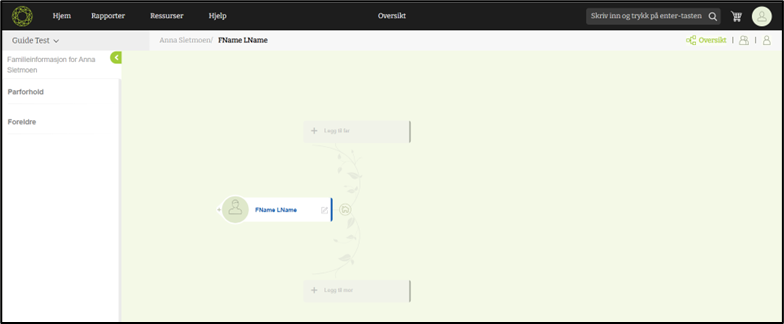
Change the root person
Change the root person through parent nodes Users can change the root person by clicking on the name in a node. Change the root person through “Side-panel” Click on the name from the side panel. Change the root person through “Search” Search for the member that the user wants to make as the root…
-

Add spouse, children, and siblings
01) Users are able to add spouses, children, and siblings by clicking on the ‘ + ‘ button in each node. 02) Once the user clicks on the ‘+’ icon, it will display a panel with Spouse, Son, Daughter, Brother and Sister options 03) When clicking on each section, a ‘Quick add’ prompt will open,…
-
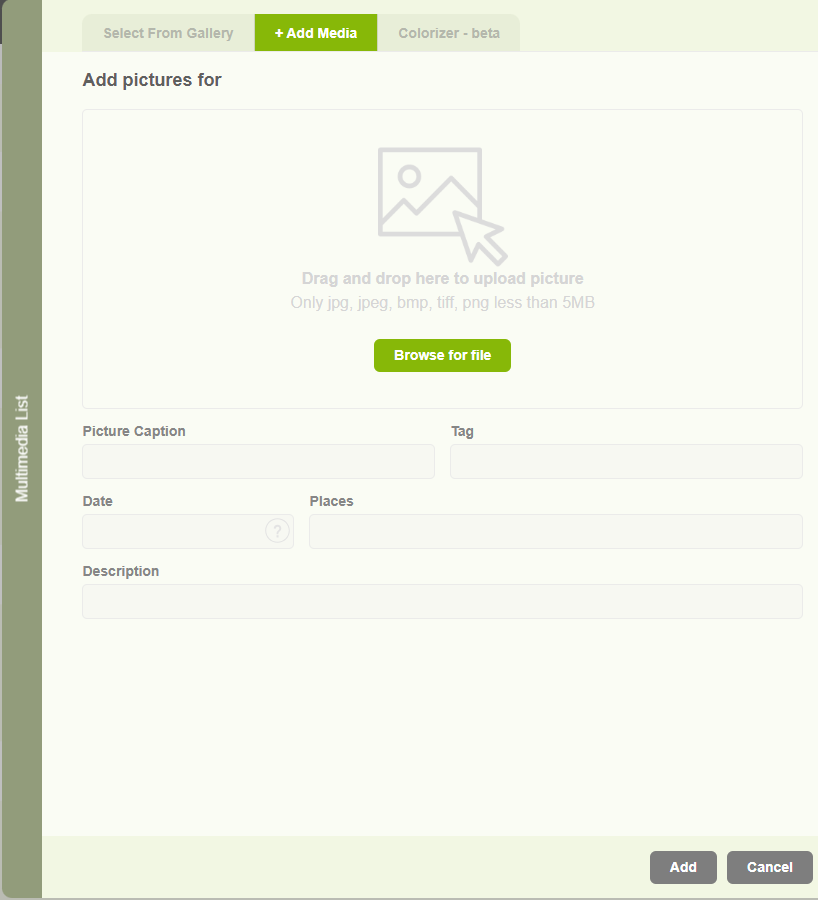
Add a profile image to a member
Clicking on the dummy image. The multimedia popup will be coming up. Add an existing image 01) Users can select an existing image from the media gallery. 02) Then click the ‘Add’ button to add the selected image to the member. Upload a new image 01) If the user wants to upload a new image,…
-
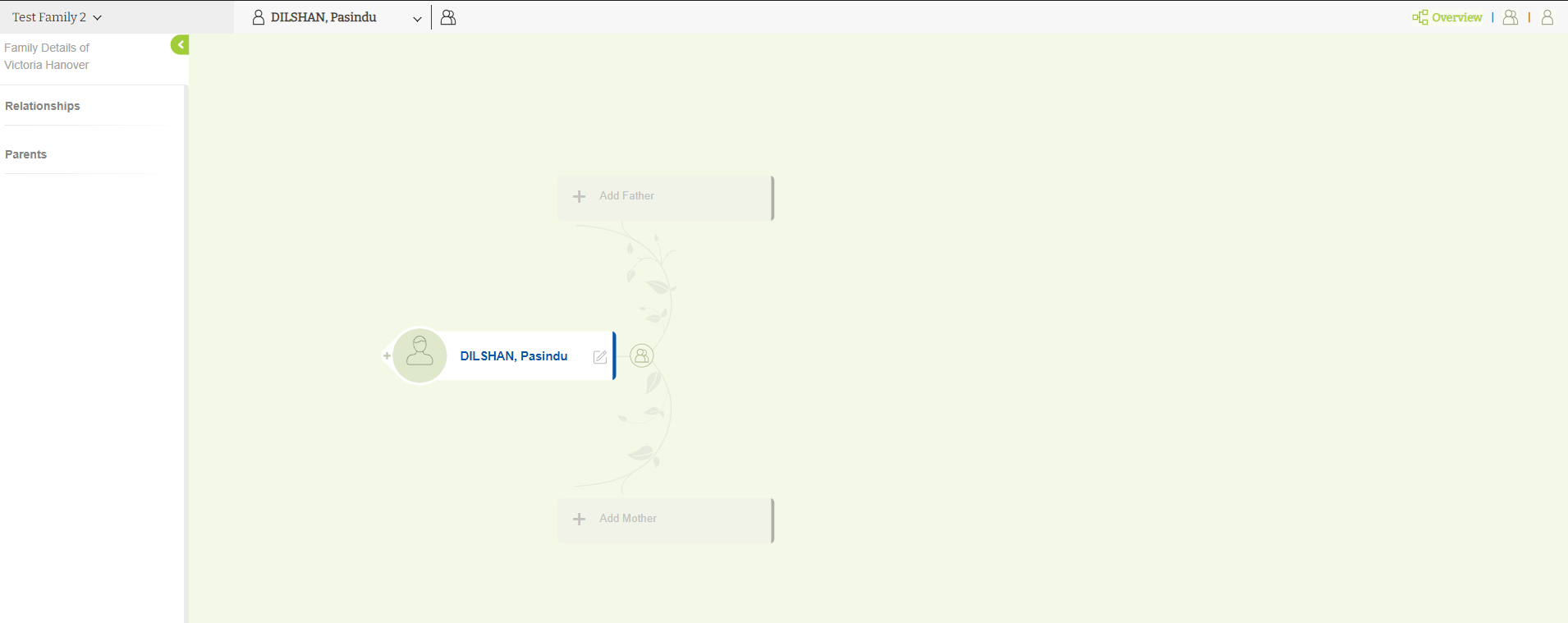
Tree editor overview
When a user navigates to the “Tree Editor” view for the first time, The user can see the first node of the family with the initially added person (Root person) Users can add ancestors The left side panel will display the immediate family details ( Married family and the Parent’s family) In the upper right…
-
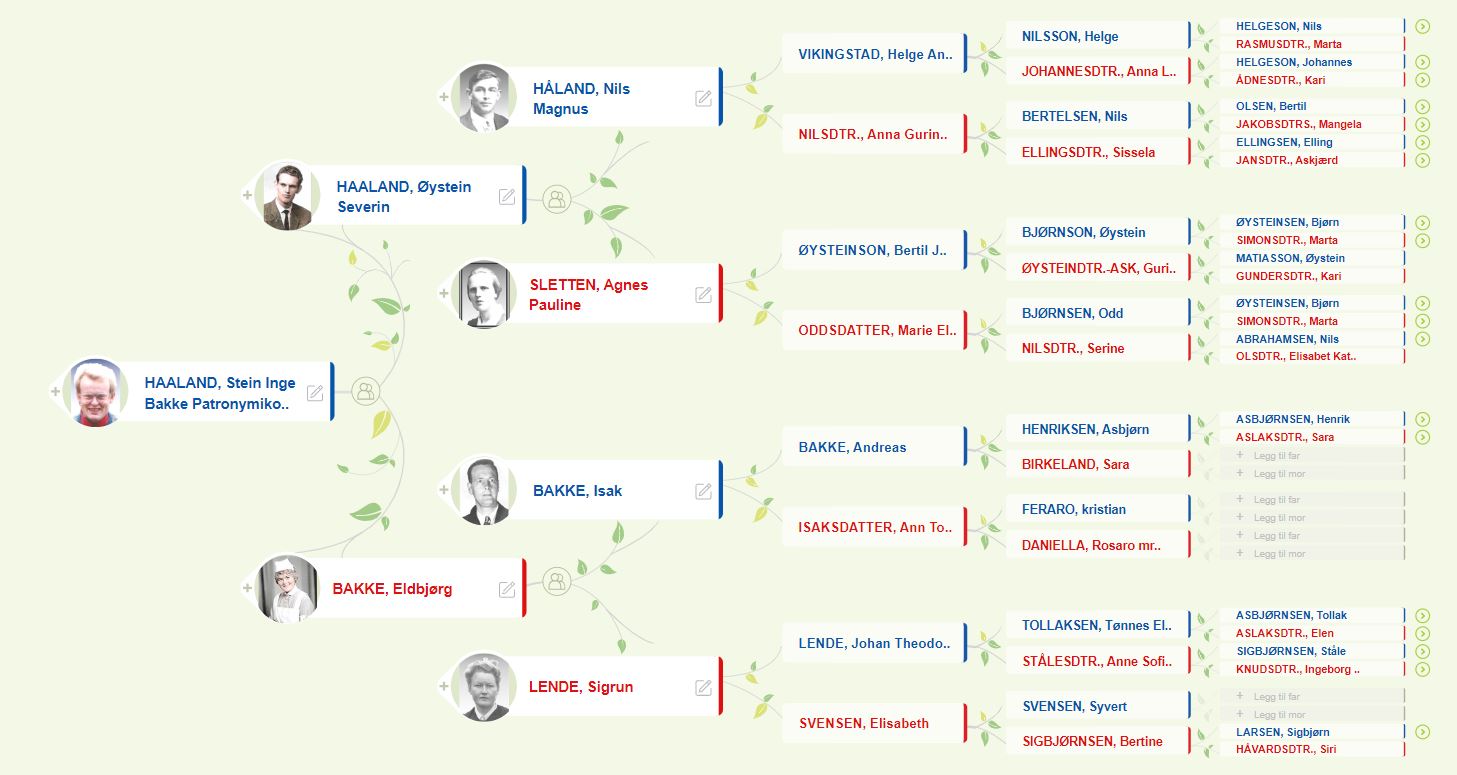
Add parents
1. Users can add parents by clicking on the parents’ nodes in the tree editor. 2. Once the user clicks on one of the parent nodes, a popup will appear to add the parents’ first and last names. 3. Clicking on the save button lets the user proceed. 4. If the user wants to cancel…