Category: Events
-
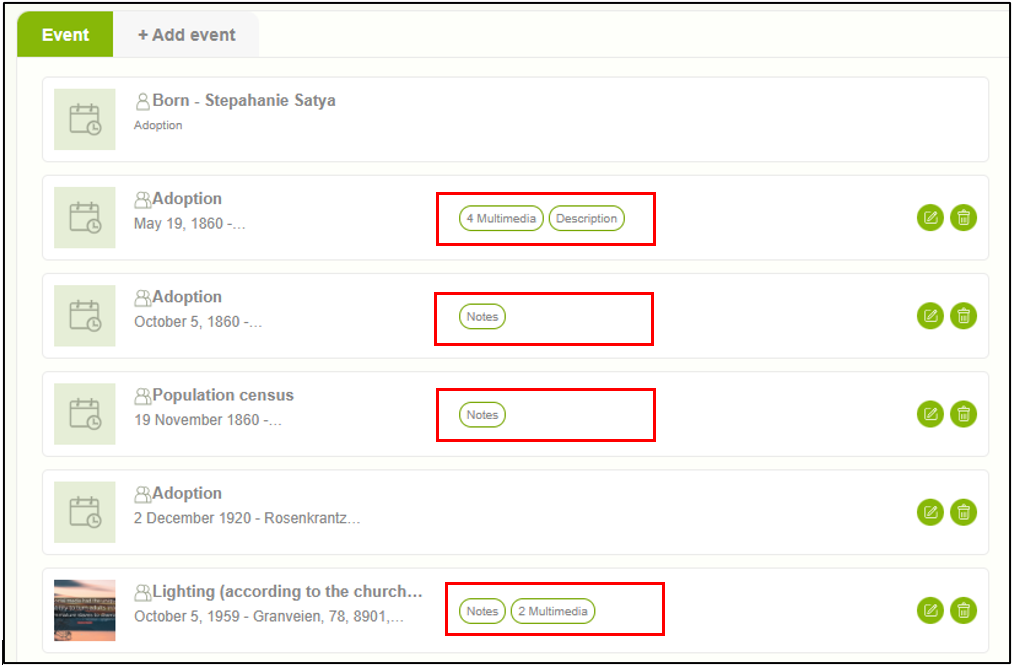
View multimedia and sources
1. Users can view the attached multimedia and sources by clicking over the number of sources and multimedia sections against each event. 2. When clicking on each, the user can view a summary of multimedia and sources. If there is more than one item, the user can move to the next using the next arrow…
-
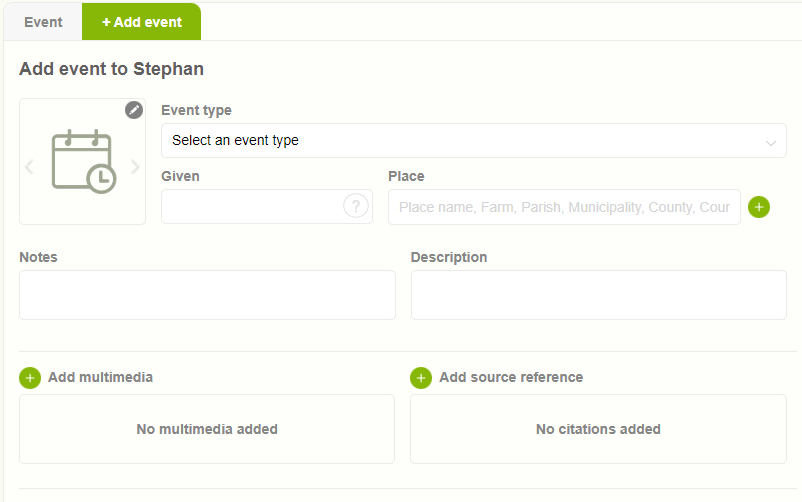
Events overview
1. Any action undertaken by an individual throughout their life can be categorized as an event. Within version 10 (v10), users can conveniently add events through the designated “Event” tab, whether personal or family-related occurrences. 2. Previously added events are readily accessible and displayed within the “event” tab for easy reference and review.
-
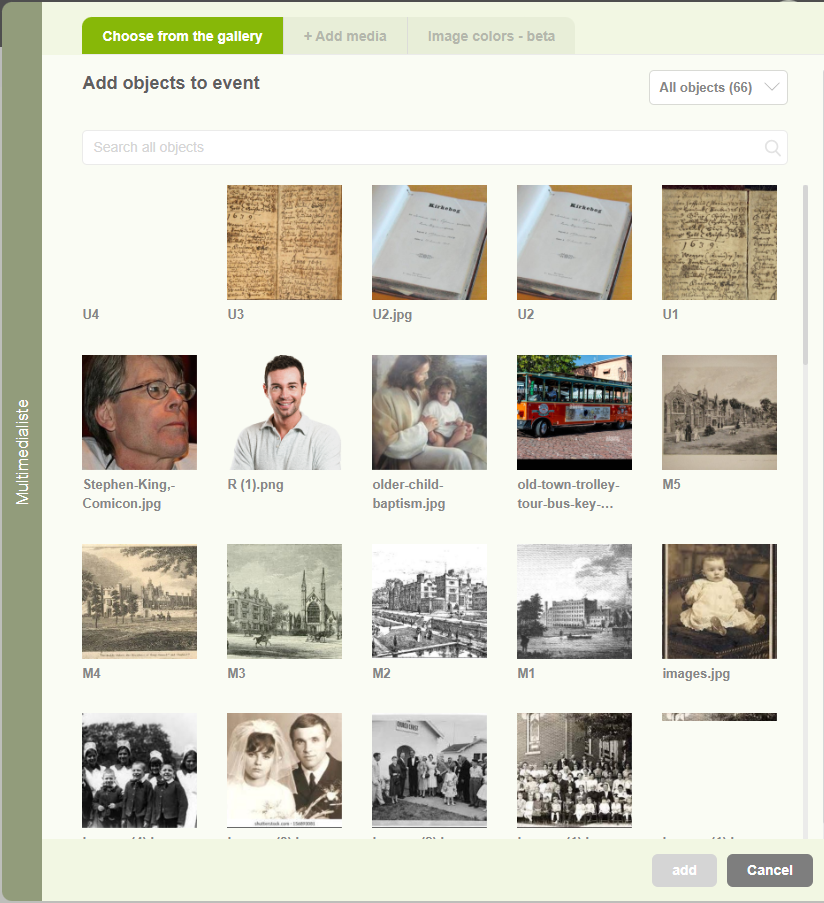
Enhance events with multimedia content
1. Users can add multimedia content by selecting the “Add” button (+). 2. Upon clicking the “Add Multimedia” button, a pop-up window will appear presenting two tabs. The first tab, titled “Choose from Gallery,” allows users to browse existing media files and select one. 3. The second tab, labeled “+ Add media,” enables users to…
-
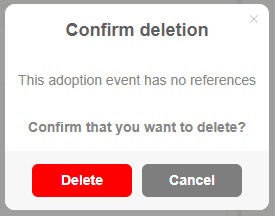
Delete events
1. Users can delete events by clicking the delete icon associated with each event entry. 2. Upon clicking the delete icon, a confirmation message will be displayed, prompting the user to confirm their action. Subsequently, the user can proceed by clicking on the “Delete” button to permanently remove the event.
-
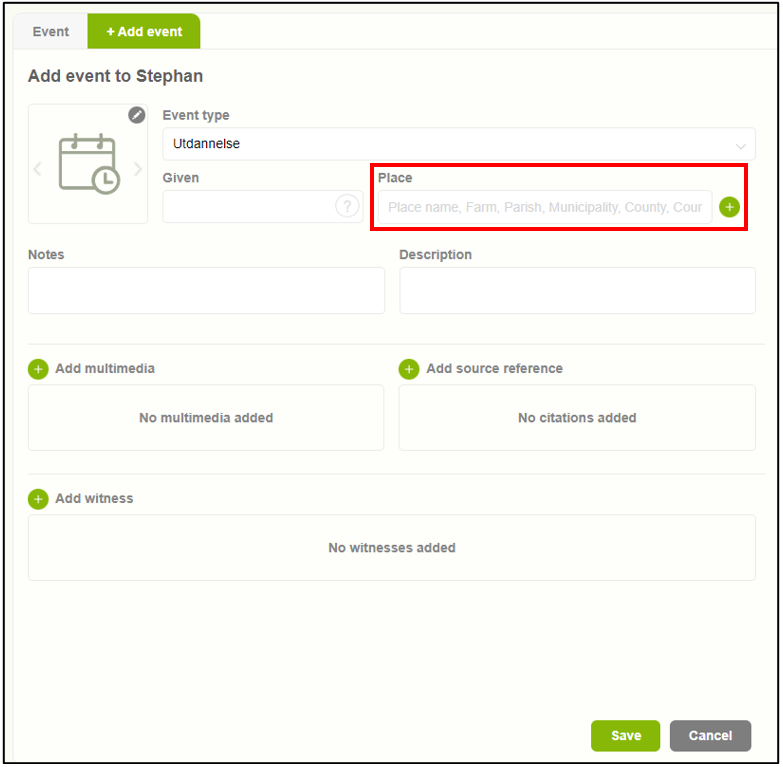
Add an event location
1. Users can add an event location by selecting the “Add place” button (+). 2. Upon clicking on the “Add place” button, a pop-up window will appear featuring two tabs. The first tab allows users to choose from existing locations. 3. The second tab enables users to add a new location.
-
Add events
1. Users can add an event by accessing the “Add Event” tab. 2. Users are presented with a list of different events from which they can select their desired option. 3. Users can then input the event date and location. 4. Users can add notes and descriptions about the event. 5. Additionally, they can include…
-
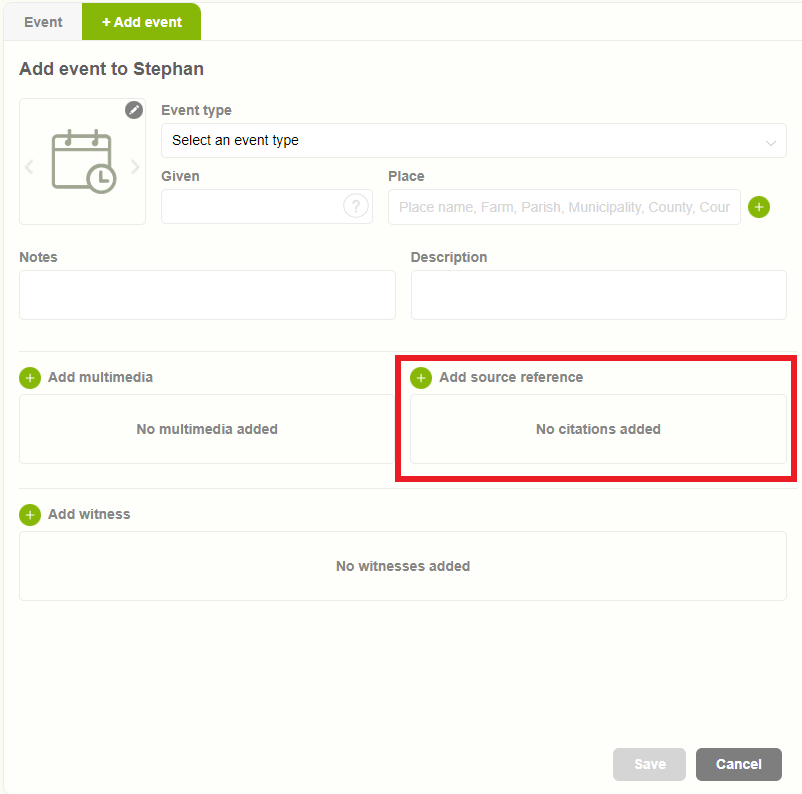
Add a source to an event
1. Users have the option to add proof or reference for an event utilizing the “sources” feature. 2. Upon clicking on “sources,” a pop-up window will appear with two tabs. The first tab displays the available sources. 3. The second tab provides the option to “Add New Source” for the event. 4. Following the addition…