Category: Version 10
-
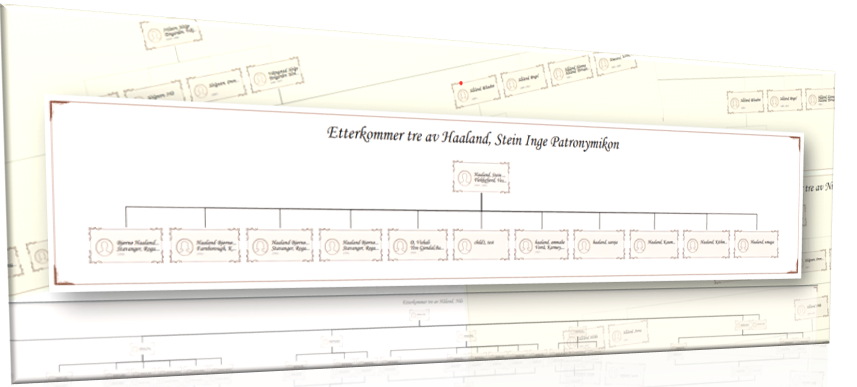
Descendent report: Unveiling your family tree’s legacy
Exploring one’s family history is a journey through time, a quest to uncover the roots that anchor us in the tapestry of human experience. At the heart of this exploration lies the descendant chart—a powerful tool that maps out generations, revealing the intricate web of familial connections that define us. What is a Descendent report?…
-
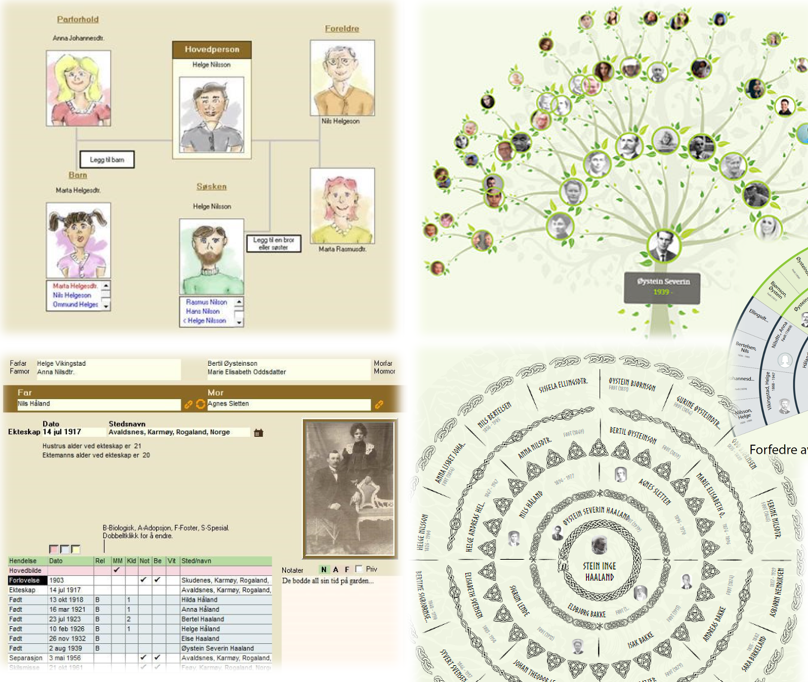
How to Migrate from V9 to V10
To ensure a smooth migration from V9 to V10, follow these steps: Backup Your Family Tree: Backup to Cloud: Click on “Backup family project to internet with multimedia.” Backup to Local PC: Follow the instructions to save the family tree locally. Access the Embla Website: Visit www.embla.no. Log in with your email and password. Restore…
-
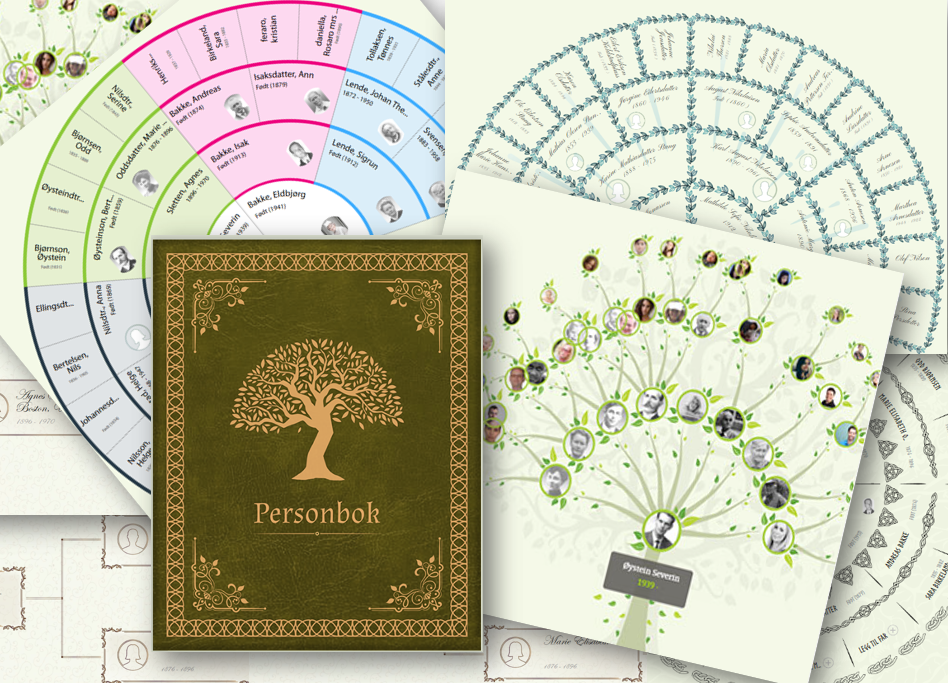
Discover the Advantages of Embla Family Treasures V10
Welcome to the latest version of Embla Family Treasures, V10! We’re excited to introduce you to the many unique features and improvements that make this version the best yet. Here’s a closer look at what makes V10 stand out: 1. Web Application Accessible from Anywhere With V10, you can now access your family treasures from…
-
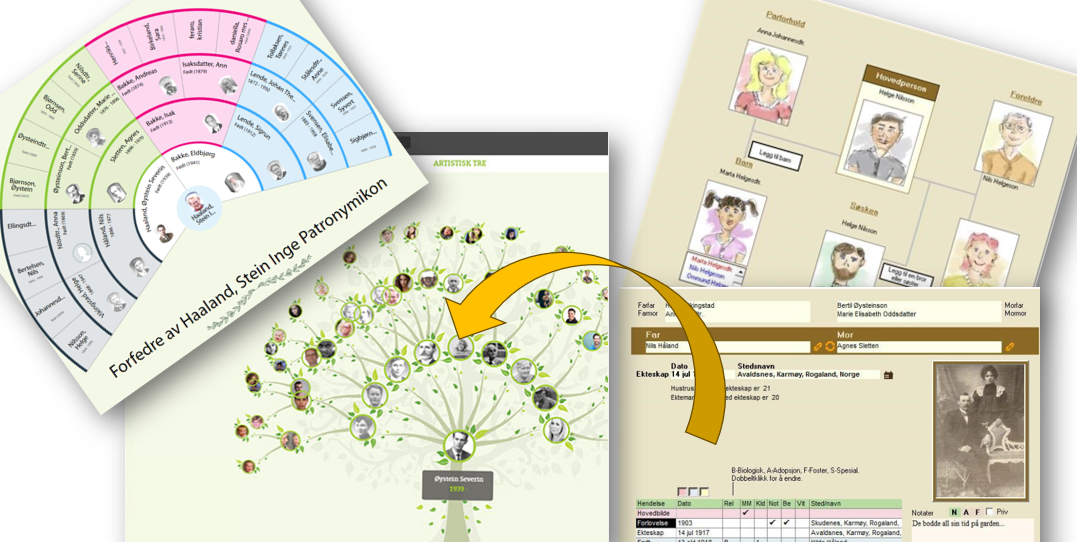
Transitioning from V9 to V10 of Embla Family Treasures
Welcome to the new Embla Family Treasures web application! If you’ve been using our older desktop version (V9), this guide will help you understand how your data has been mapped to the new web version (V10). Our goal is to make your transition smooth and straightforward. Key Features and Their Mapping Below is a table…
-

Add family profile image
1. Users can manage family profile images using different options in the image edit feature. Click on that pencil icon. 2. Initially, users can upload a new image or select one from the gallery. 3. If the user is going to upload an image from the gallery, a popup will be opened with the existing…
-

Family events
1. Users can view family events on the right pane in the family editor 2. Users can add a family event by clicking on the “Add event” tab in the right pane of the person edit page.
-
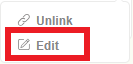
Edit family members details
1. Users can edit a family member’s details by clicking on the “pencil” icon of the relevant person 2. Then click the “edit” option from the displayed options. 3. When clicking on the “Edit” person edit tab will be opened with the relevant person’s data.
-
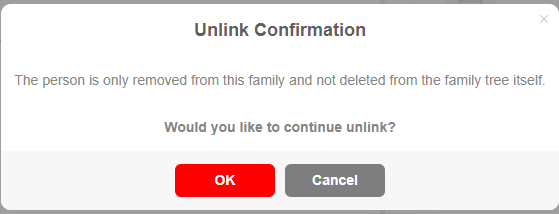
Unlink a person from the family
1. Users can click on the pencil icon of a relevant person. 2. Click on “Unlink” option from the edit menu 3. Then a confirmation message will be displayed, and if the user clicks “OK”, the relevant person will unlink from the family.
-
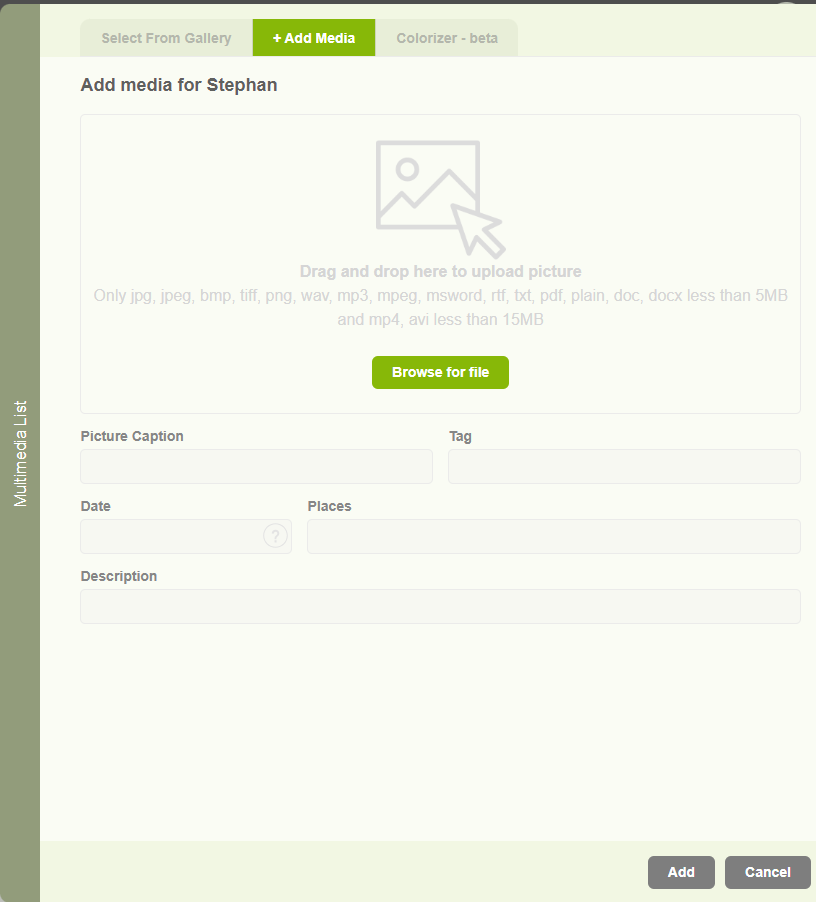
Add media for a family
1. Users can add images for family profiles, but if they need to upload documents, videos, and audio to their profile, it is enabled with the other media section. 2. Users can upload different media types as below. 3. Same as the image upload, user can select an available other media type from the gallery.
-

Add marriage location
1. Users can add marriage place by clicking on the “+” icon display against the location text box in the family editor page 2. When clicking on the add place button, a popup will appear with two tabs. The first one is to select an existing location. 3. And the second tab is to add…
-
Family editor overview
Users can view basic family information in the “Family Editor” Tab. Here, users can view the father and mother’s names. Their marriage date and location, Children’s names, Notes, and Address
-
Add a child to a family
1. Users can add a child to a family by clicking on the ‘Add children’ button “+” icon. 2. Then a popup will be opened with two tabs to select from the available list or to add a new child. If the user wants to add an existing person as a child, then the user…
-
View personal events
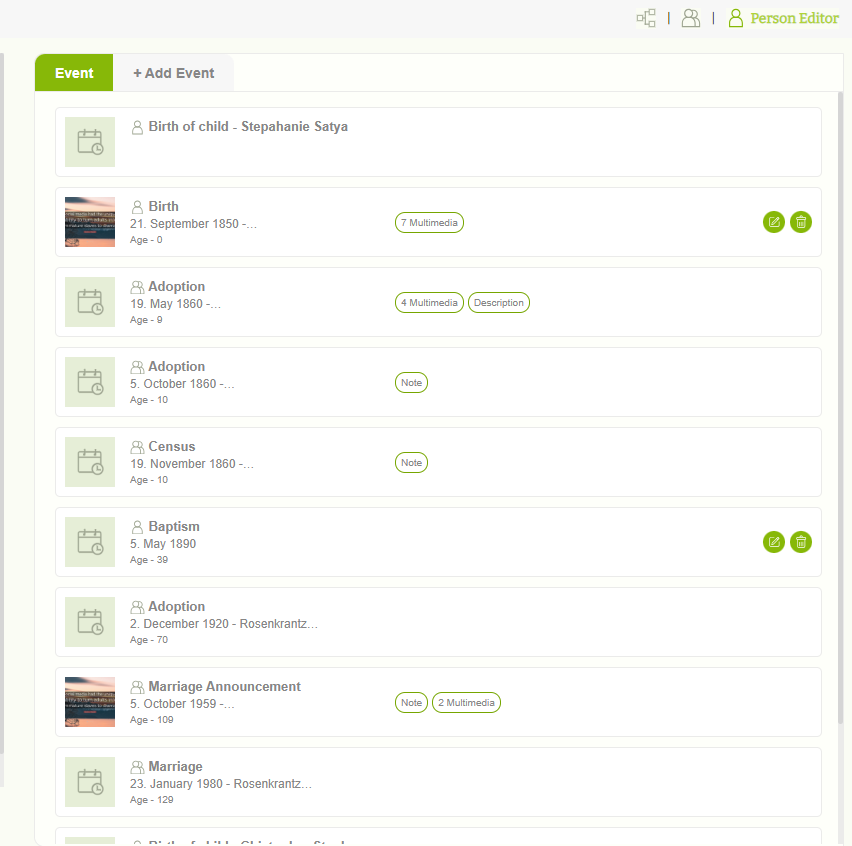
Users can view already added events in the “Event” tab.
-
Profile image options
1. Users can manage profile images using different options in the image edit feature. Click on the Pencil icon. 2. Initially, users can upload a new image by clicking “Upload” The user can upload images from a local machine. 3. If the user is going to upload an image from a local machine, the “Add…
-
Member editor overview
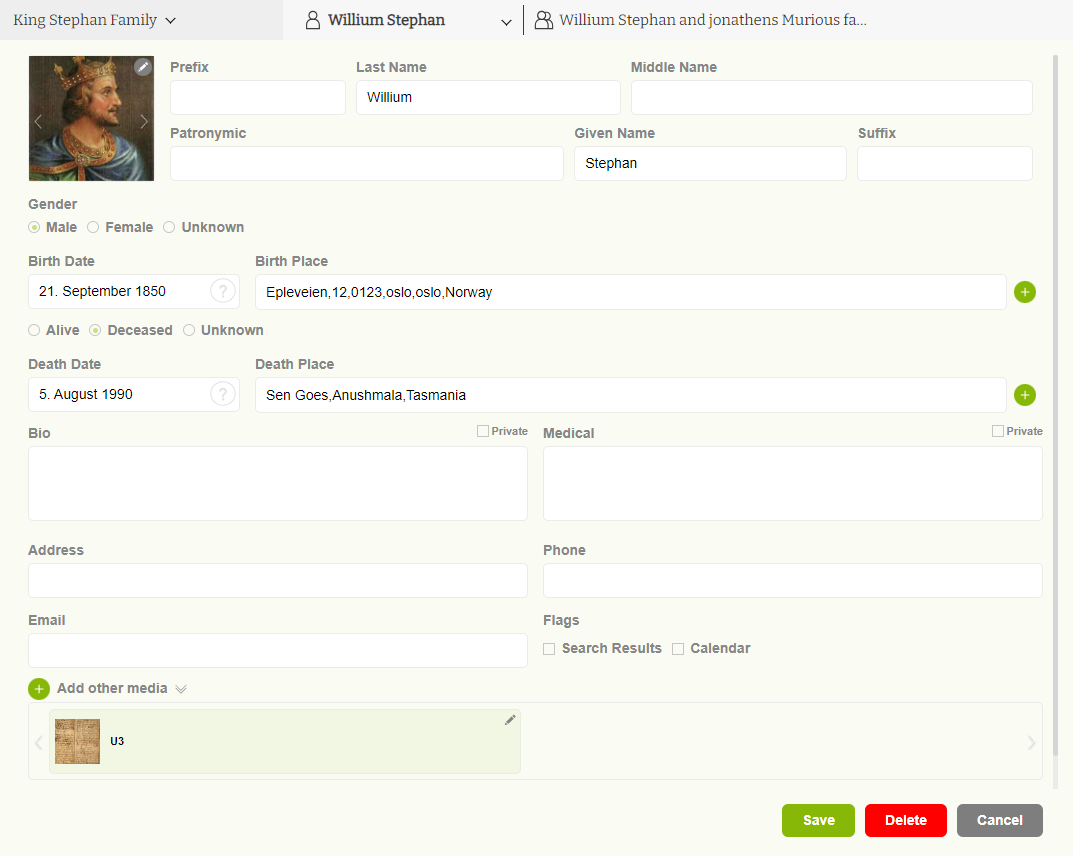
1. Users can update all their personal information on the “ Member editor” page. 2. User can add their ‘First Name’, ‘Middle name’, ‘Last name’, ‘Patronymic name’,’ Prefix’ and ‘suffix’, Sex, Birthdate, Birthplace, Death date, Deathplace, Biography, Address, Medical Records, and Media files.
-
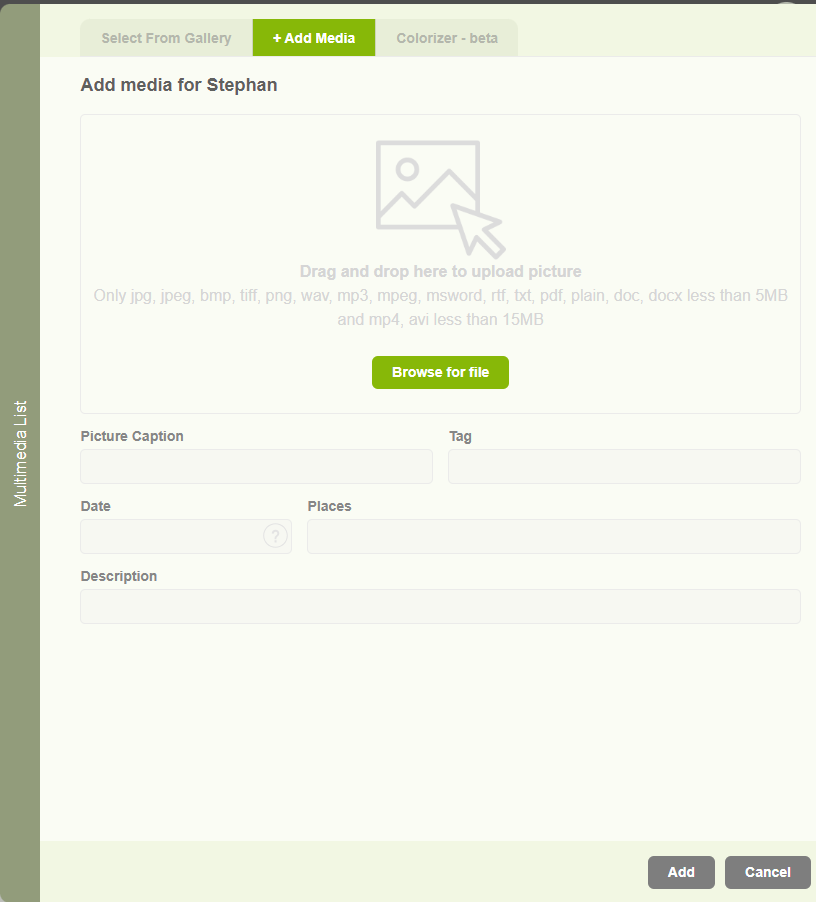
Add other media
1. Users are able to add images to their profile, but if they need to upload documents, videos, and audio to their profile, it is enabled in the other media section. 2. Users can upload different media types as below. 3. Same as in image upload user can select available other media types from the…
-
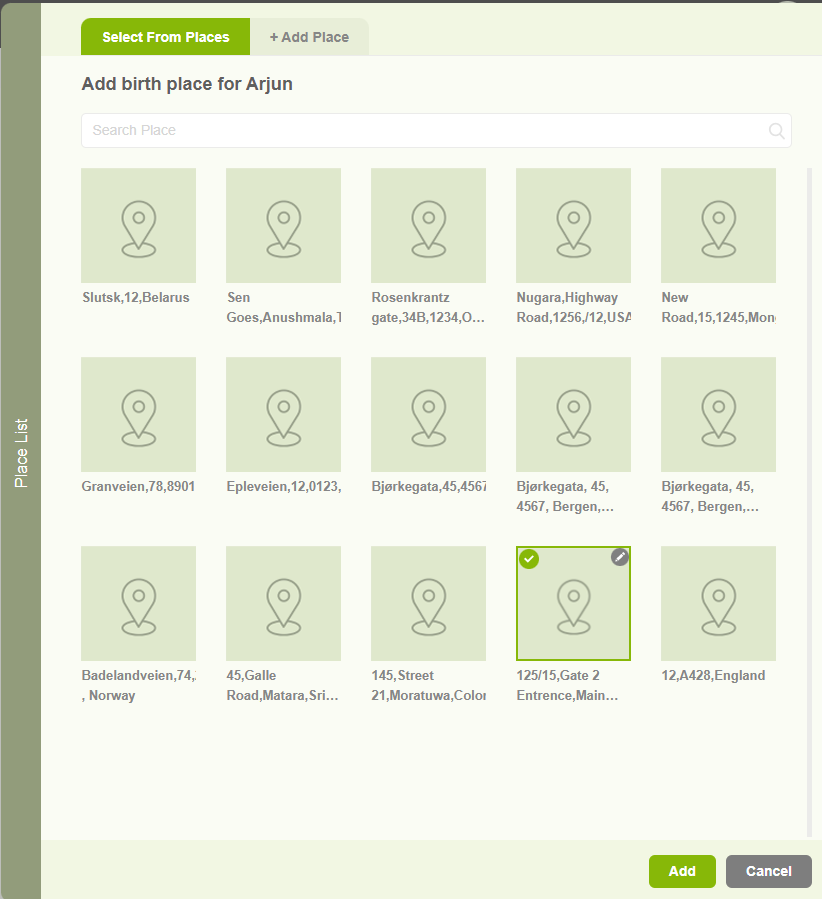
Add Birthplace and Deathplace
1. Users can add a Birthplace or a deathplace by clicking on the “+” icon in the member editor page 2. When clicking on the add location button, a popup will appear with two tabs. The First one is to select an existing place. 3. The other tab “Add Place” tab is to add a…
-
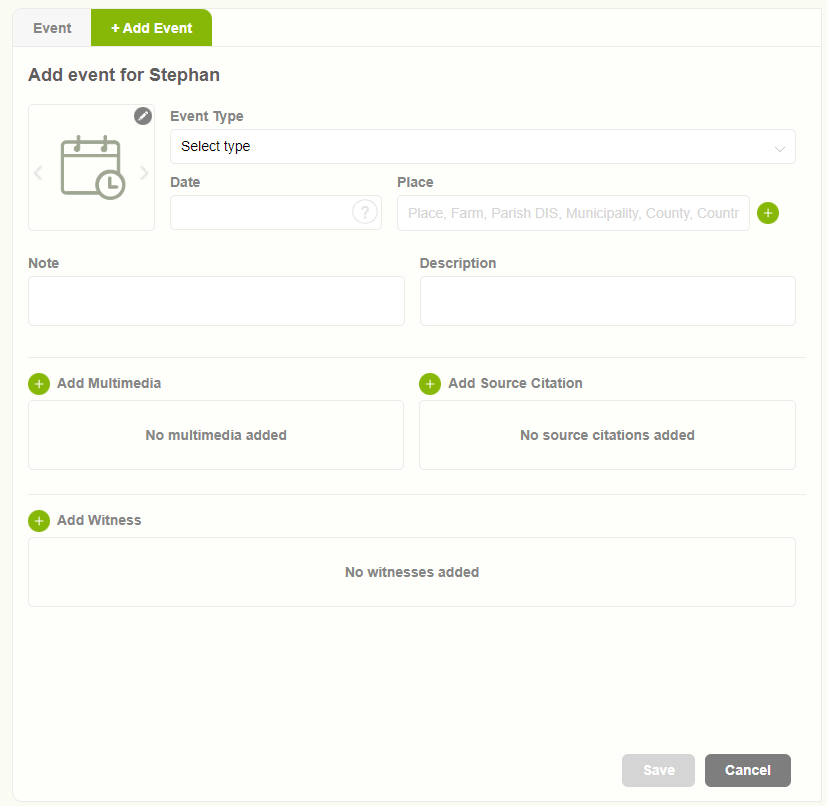
Add personal events
1. Users can add a personal event by clicking on the “Add event” tab in the right pane of the ‘Member editor’ page 2. When clicking on the Add Event tab, the user can view the form to enter details. 3. Add all the mandatory data and click on the “Save” button to store the…
-
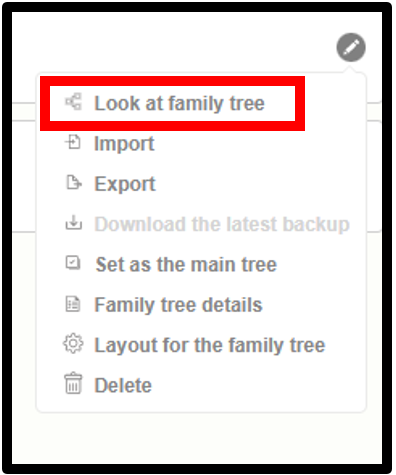
View the family tree
1. Go to the version 10 web application. 2. Click on the drop-down icon near the family tree name. 3. Then click the ‘Manage Family Trees’ option. 4. Now the already created tree list can now be seen 5. Click on the ‘edit’ icon next to the family tree that the user wants to view…
-
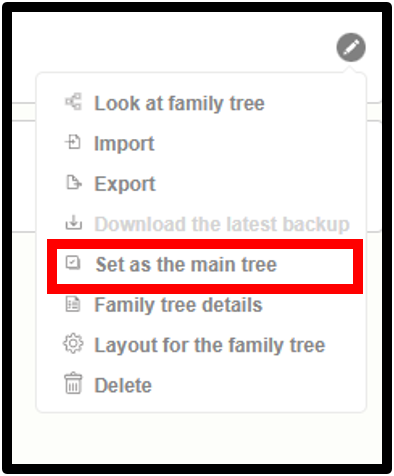
Set as a main Family tree
1. Go to the version 10 web application. 2. Click on the drop-down icon near the family tree name. 3. Then click “Manage Family Trees” option. 4. View the list of already created trees. 5. Click on the edit icon next to the family tree for which the user wants to view details. 6. Click…