Menu selection at first start-up
When the program is started for the first time, you will be presented with a start menu. You will only see this menu at the very first start-up.
- New user – start with a new family tree for the very first time.
- Has another family program – and wants to transfer via Gedcom.
- Has a family tree created in Embla Family and Genealogy v5, v2006, v2007, v8 or v9. It is also possible to open a backup from these versions as well as to download a backup from the internet or from an old computer.
- Embla Family and Genealogy v4 – transfer the family tree from version 4
- Embla Family and Genealogy v3 – import the family tree from version 3
- WinFamily v6 – direct import of the entire family tree from WinFamily v6 without going through Gedcom.
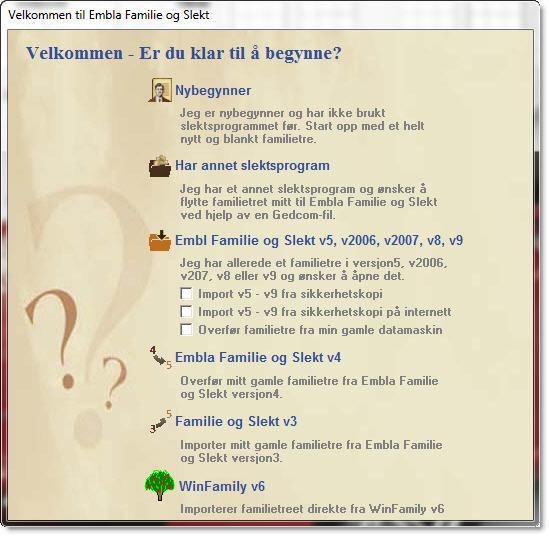
If you are starting with “blank sheets” and are about to start registering your family tree, select the “Beginner” menu. Then the genealogy program creates a completely new and shiny family tree. You can do the same when the program has started from File in the menu bar and submenu for Create New Family Tree
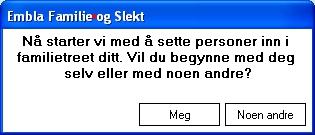
Now the program appears on the screen and shows almost nothing. Only the application background and a text box are displayed. The text in the box asks who you want to register first in your family tree. Whether this should be yourself or whether it should beanother person. We recommend starting with yourself and therefore click on the button called “Me”.
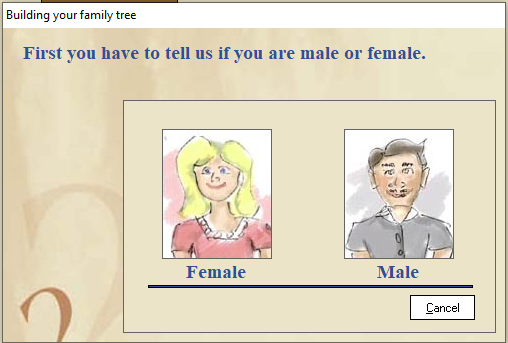
In the next window, the program asks if you are a man or a woman. Click on the image of the desired gender to proceed. In our example, we click on the image of the man.
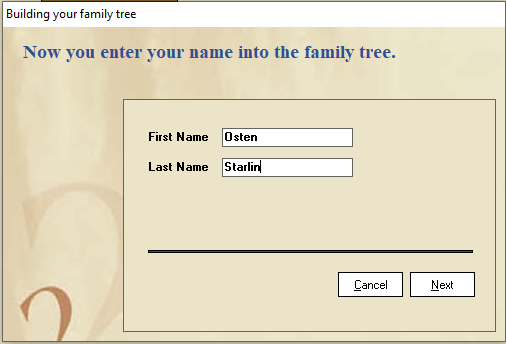
In the next window, enter your first name and last name. One name in each field.
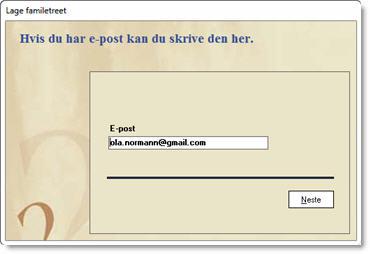
Then the program asks for your email. If you have e-mail, write it here, and if not, leave the field blank.
The entire genealogy program is now displayed. Note that your name is inserted as the main character along with a drawing of a man (or woman).
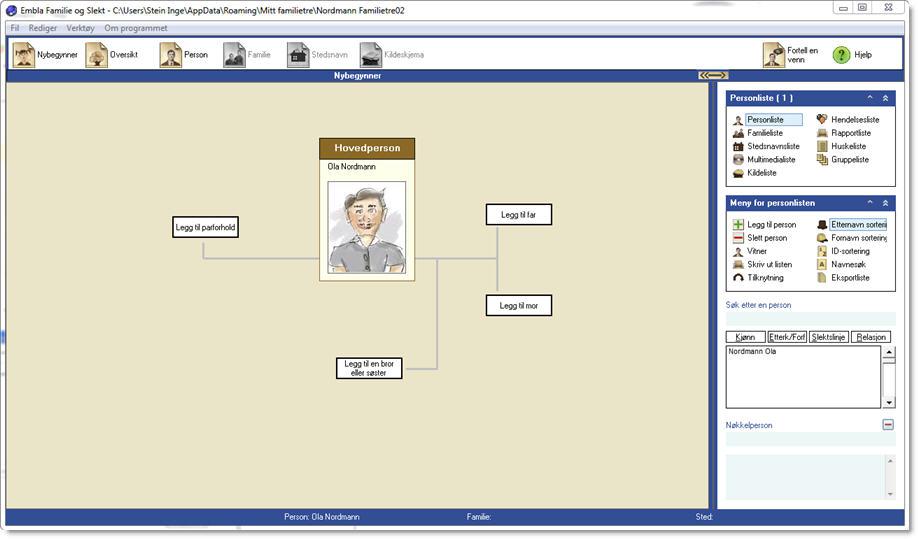
Take some time to see how the beginner form is structured.
- Notice the row of buttons at the very top of the program. The button on the far left is the “Beginner form”
- Also notice the person in the center. According to our description, this is you.
- Around the main character there are some white buttons. By clicking on these buttons, you can add more people to your immediate family circle in the same way as you added yourself.
- Spend some time on the quick lists on the right of the screen.
- The quick lists have a white background, and we can see that the selected quick list is “Person list”. We can see this from the very top heading which is a blue background with white writing. It says “Person list (1)”. Then we know that the person list has been chosen and that there is one person in the family tree – and that is you.
- Just below this heading, all the quick lists are listed. Here you can again see that it is the list of people that is marked in blue. This is where you choose the type of quick list.
- A little further down the list of people you come to a large white field where there is now only one name in. This name is also yours. All personal names registered in the genealogy program end up on this list. When the family tree becomes large and cluttered, you can use the person list to find a specific person very quickly.
We will return later and fill in dates, places, events, biographies, photos, etc. But now you can continue to register a new name. Let’s put your mother in this time. Click on the white note that has the text “Add mother” which you find right to the main character.
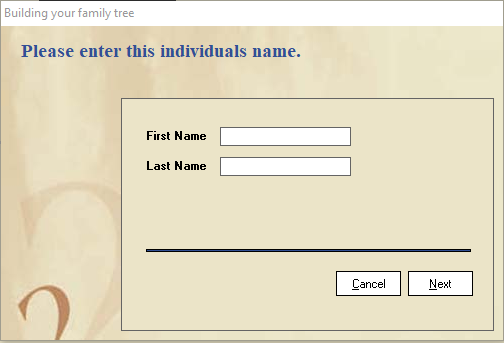 The program asks for the mother’s first name and last name. Here we enter it and click on the next button.
You should not do more, because now mother is also placed in your family tree.
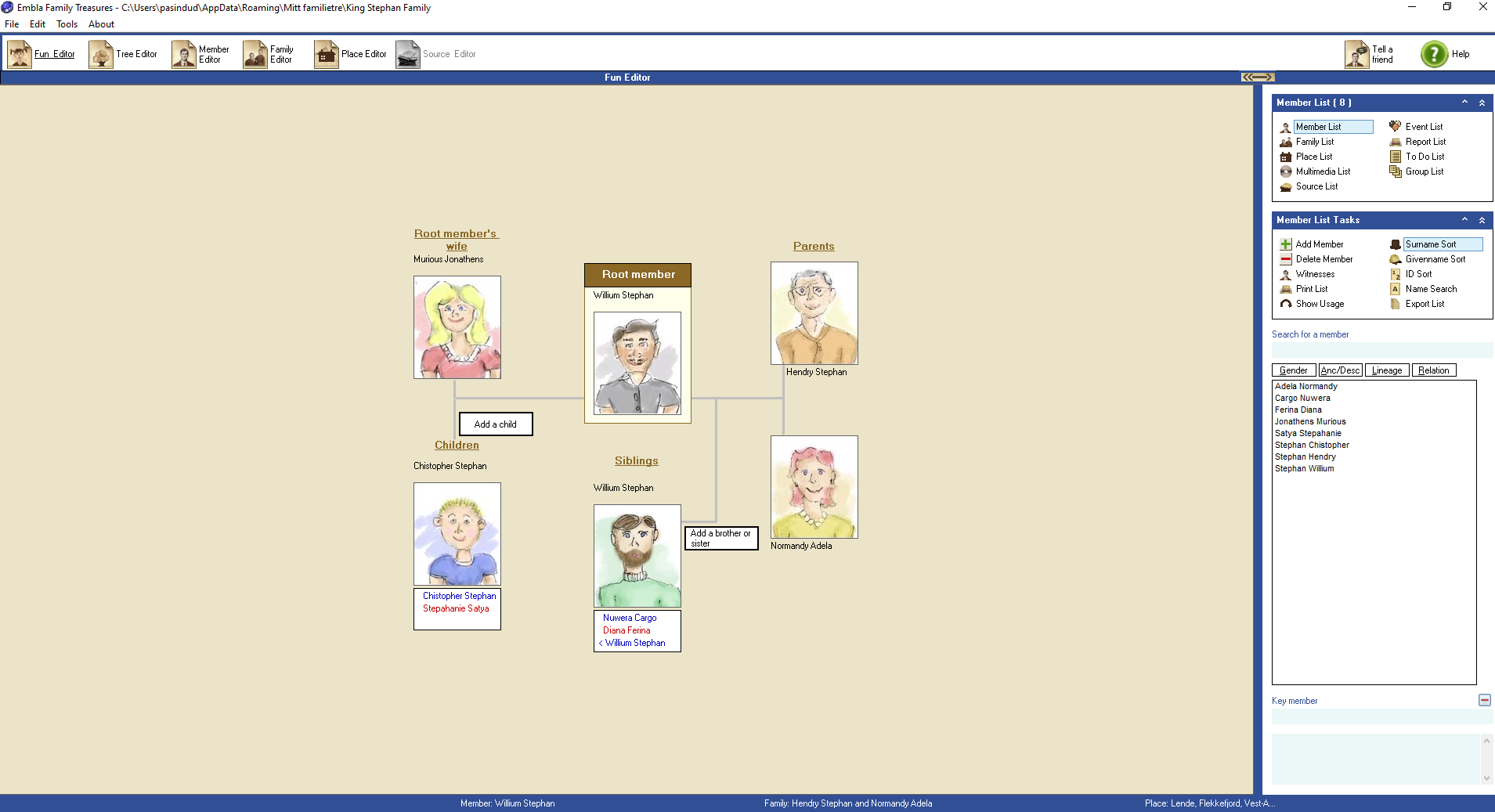
Also note that the mother’s name has also appeared on the person list on the right.
Yes, it’s that easy to start with Embla Family and Family. You can now add more of your family members by clicking the other white buttons. In the section dealing with the main panels, you can read more about the beginner form.
If you want to expand your horizons and look at several generations at the same time, you can select the button for the Overview form on the button row. Note that the first three generations are basically very similar to the beginner form. In the Overview form, there is only room for one name box for each person, as there are so many people to be displayed on the screen at one time.
When you have come so far that you want to add more information to each person, you must learn to use the person form.
Leave a Reply