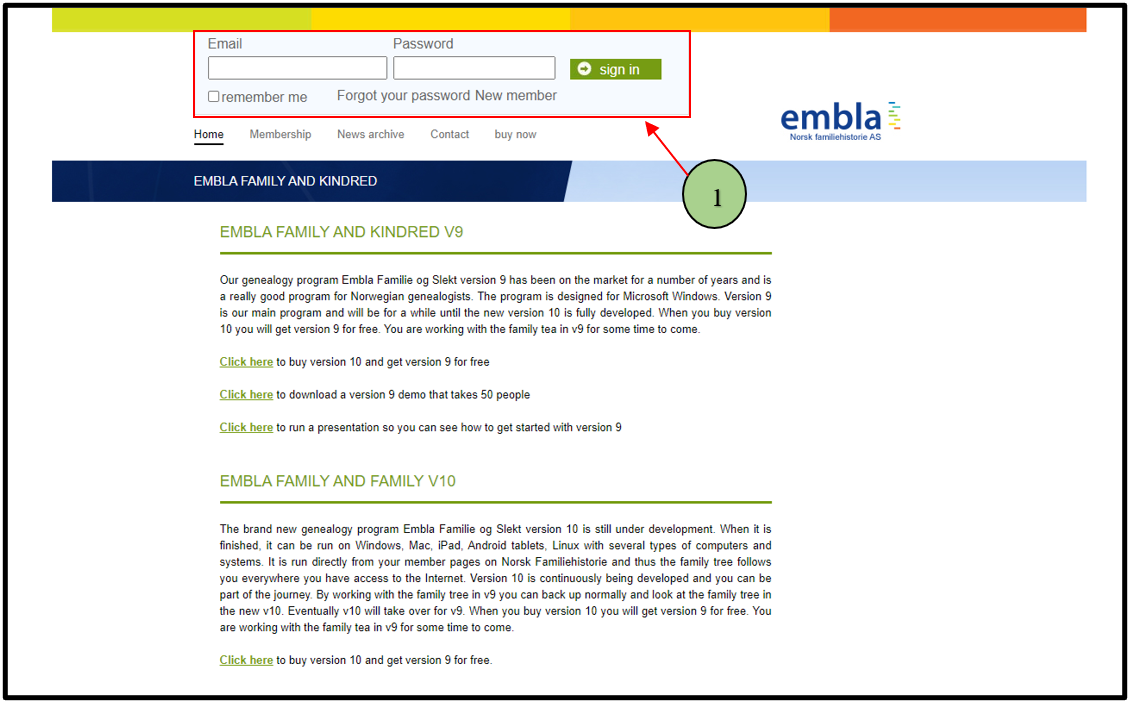
1. Existing users browse http://embla.no/ from their browsers. Then the user can input their email & password to log into the system account.
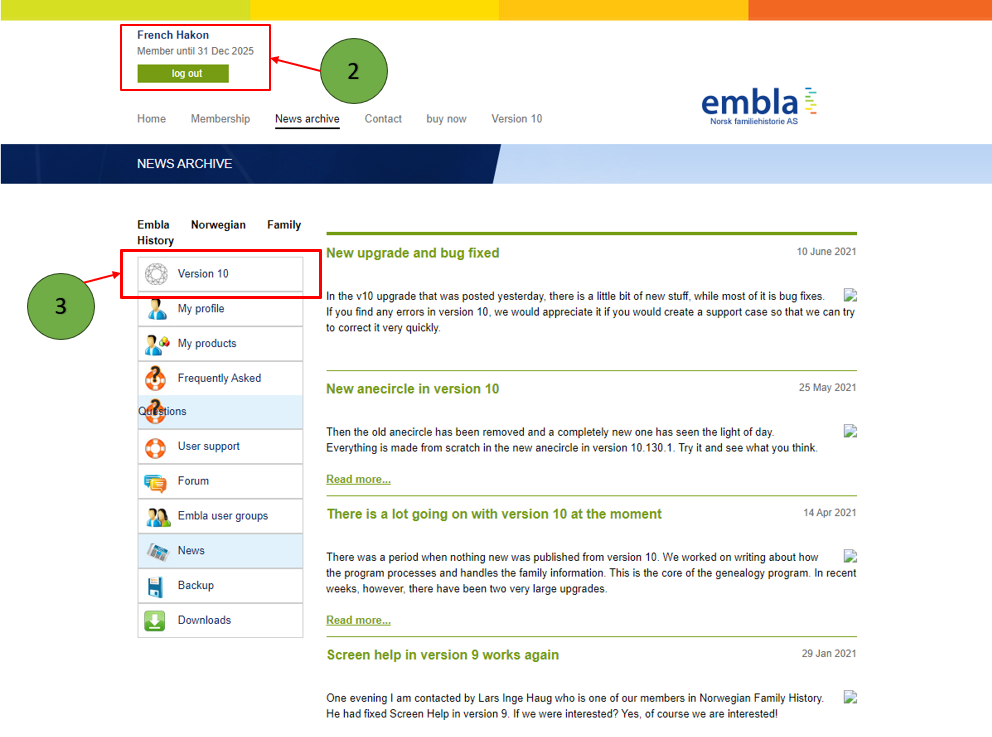
2. When the user enters the correct credentials, the user will navigate to the user account page and display the username in the window.
3. Then the user can click on the “Version 10” menu from the menu list.
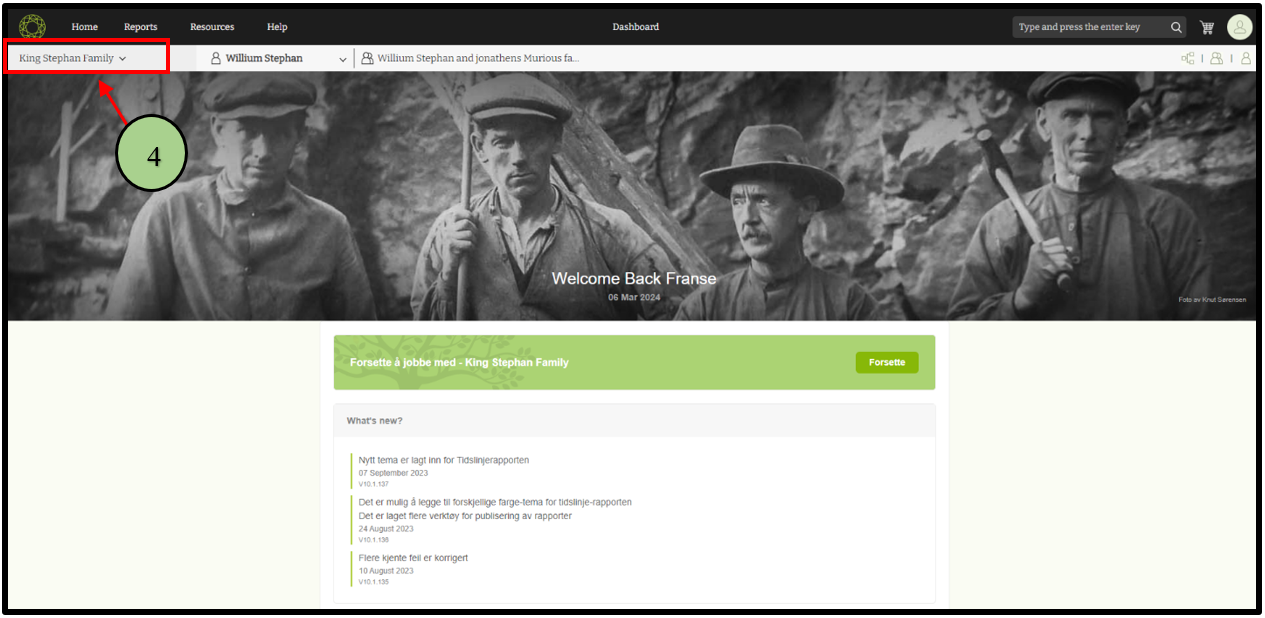
4. After that, the user can see the V10 application interface. In the top left corner is a dropdown with the tree name. Then click on that.
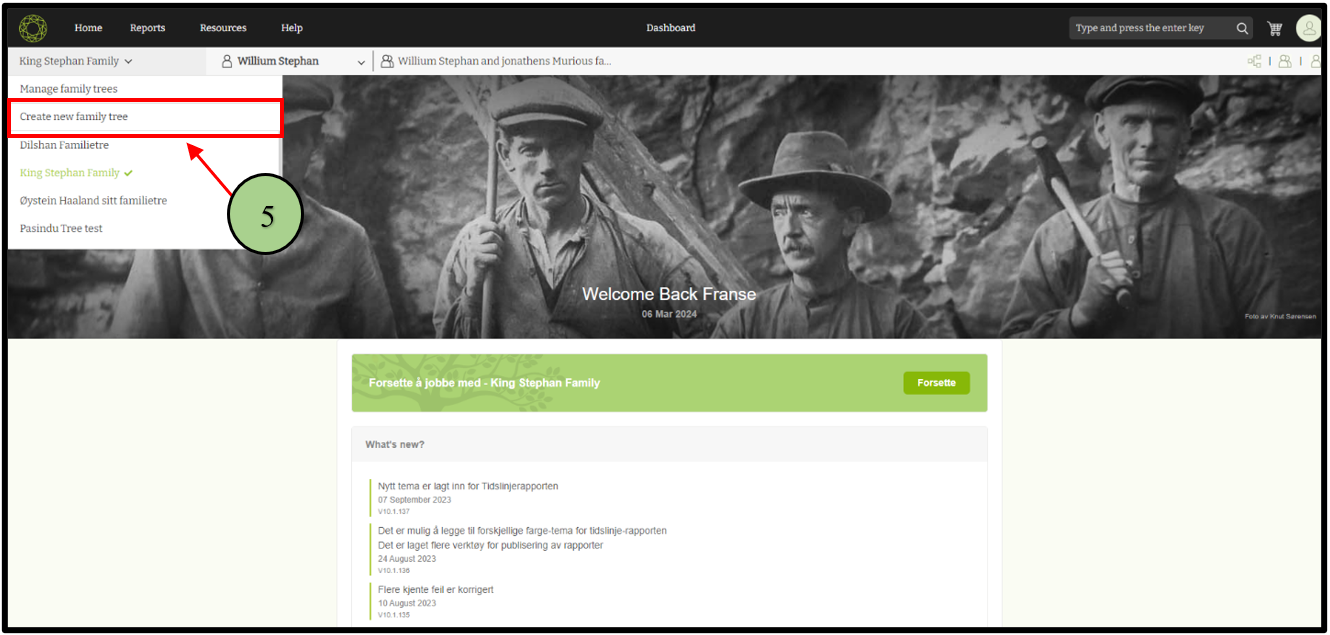
5. Then click on the “Create new family tree” option from the drop-down list.
6. Users can give a name for the family tree.
7. The user gives the first name and last name of the root person.
8. And select the gender of the root person.
9. Finally, click on the Save button.

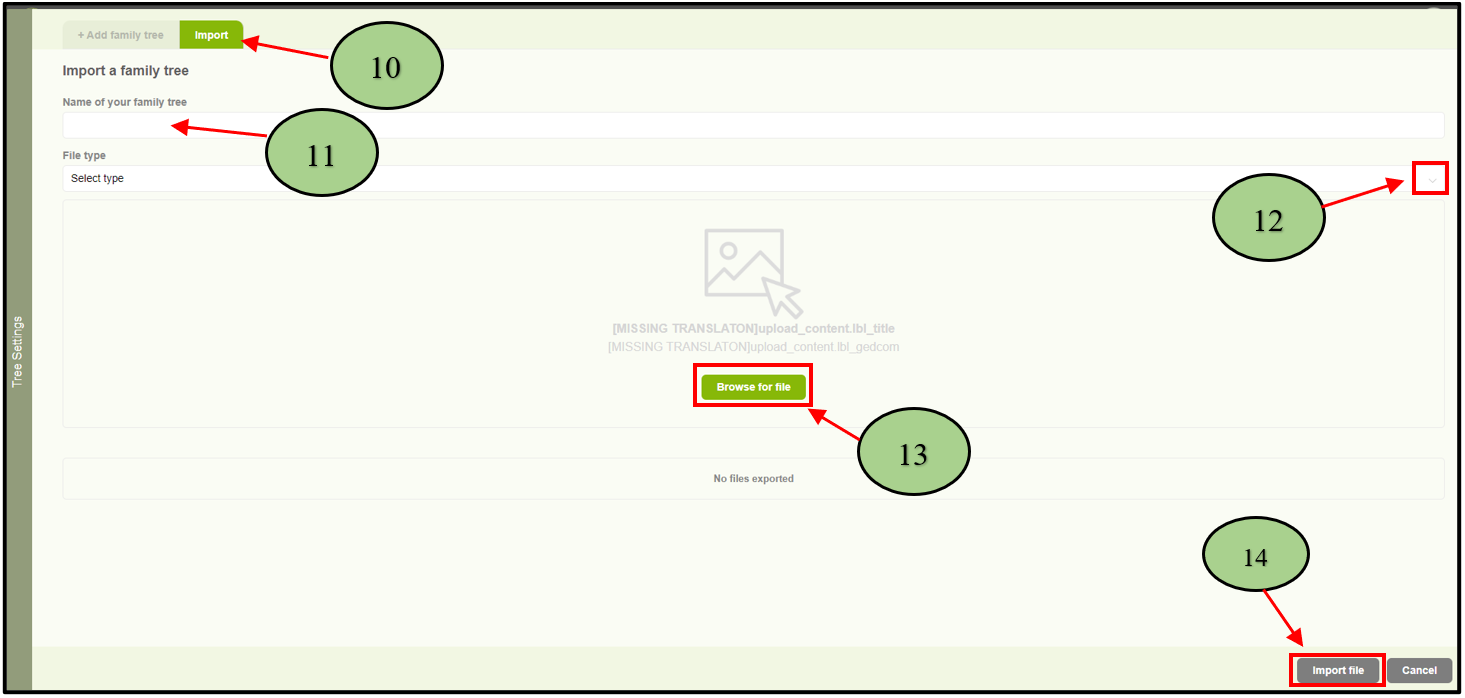
10. If the user wants to create the tree using a previously created Gedcom file, and then clicks on the “Import” button in that V10 application interface.
11. After that, users can give a name for the family tree.
12. Then the user selects the “GEDCOM” file type from the drop-down menu.
13. Then browse the GEDCOM file location.
14. And click on the “Import file” button.
Leave a Reply