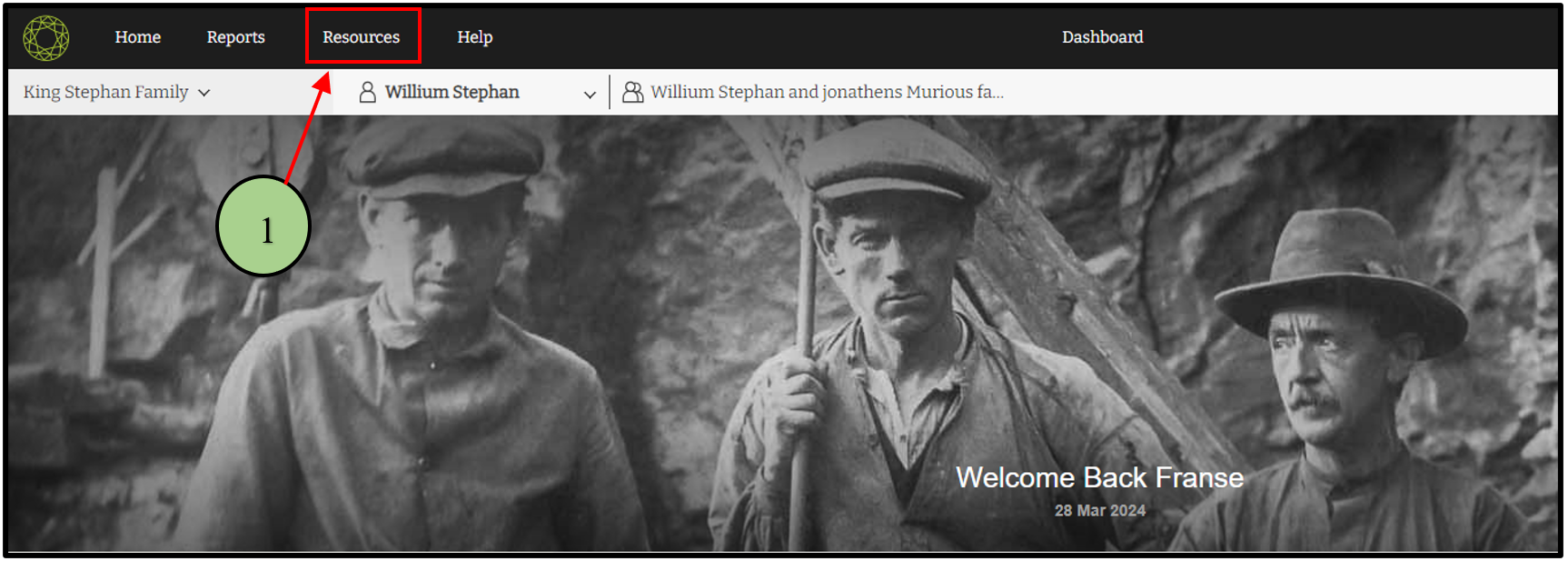
1. Click on the “Resources” tab.
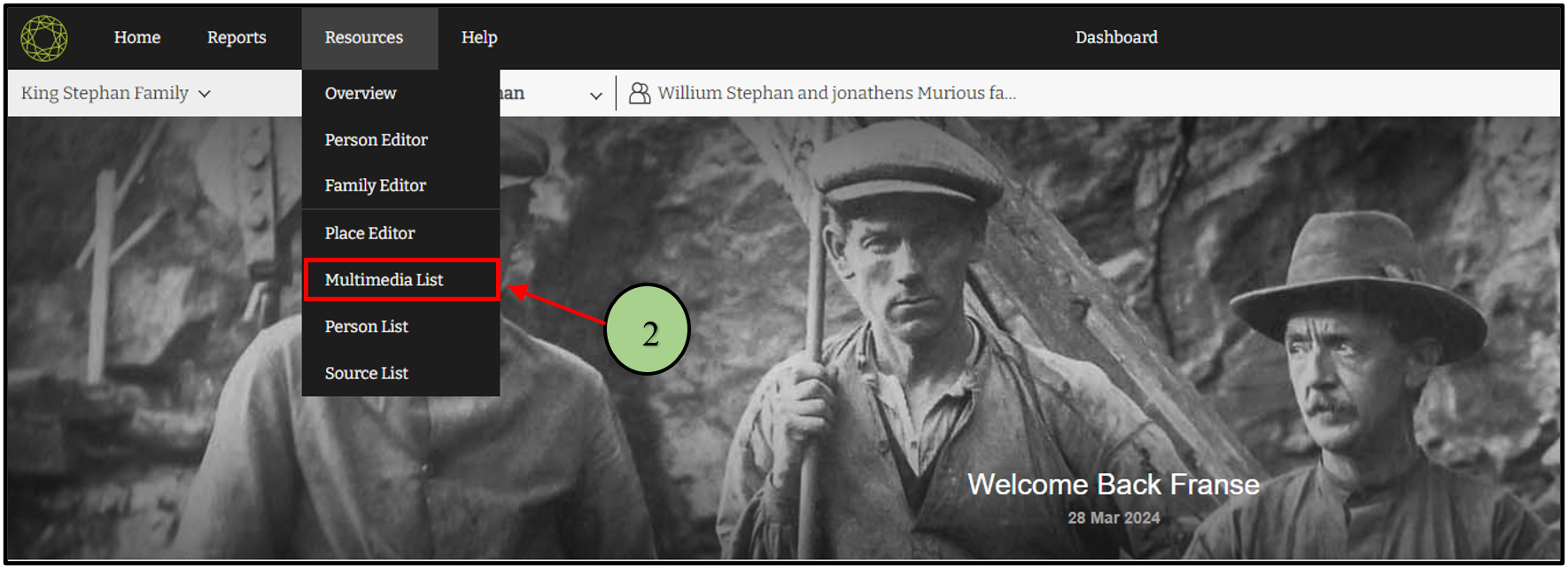
2. Then select “Multimedia List” on that list.
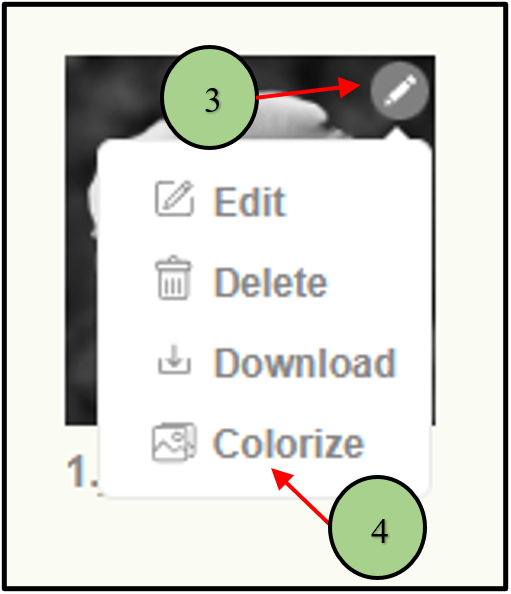
3. Clicking on the pencil icon on the image that the user wants to colorize.
4. Then click on the “Colorize” option.
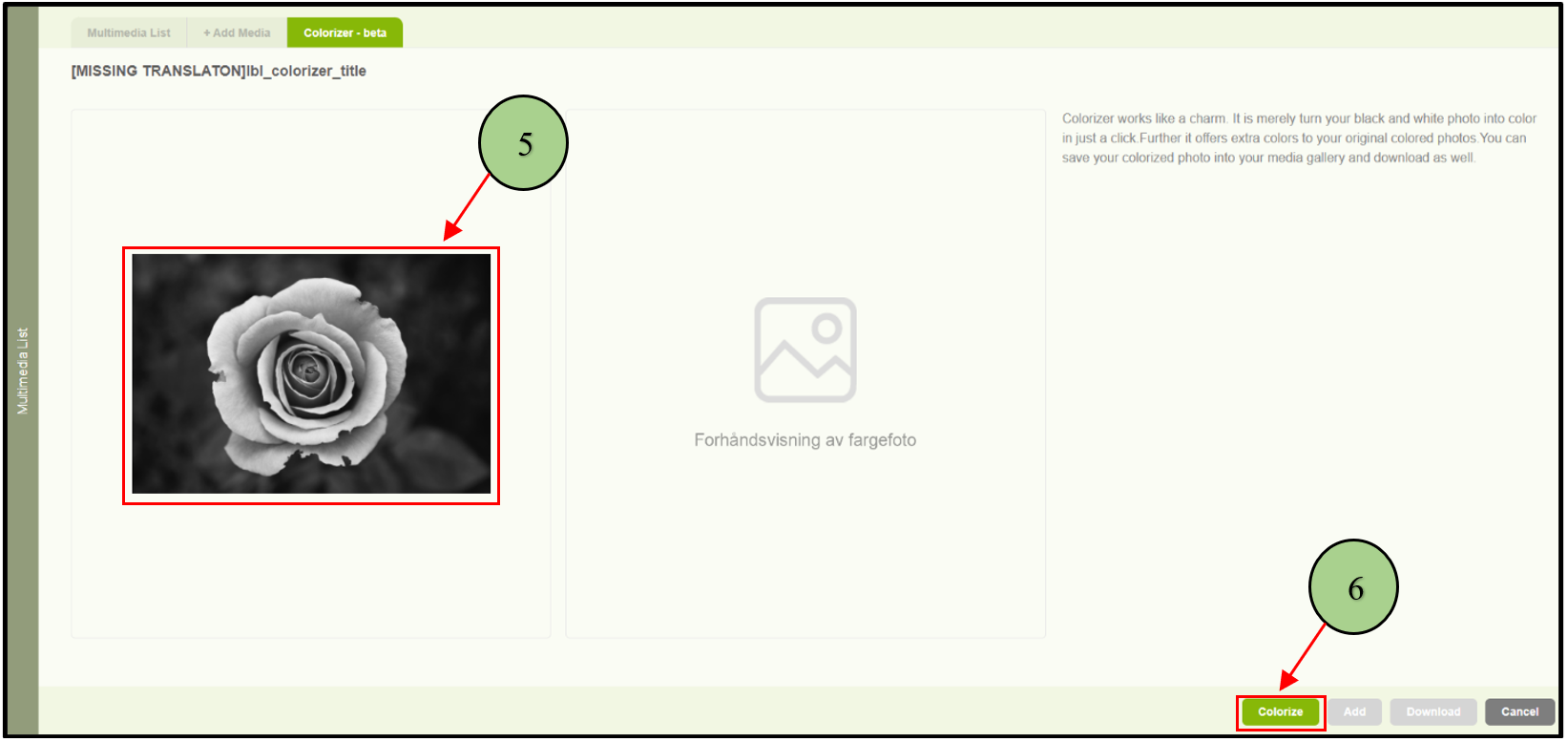
5. When clicking on the “Colorize” option, the user will be navigated to the colorize tab with the selected image.
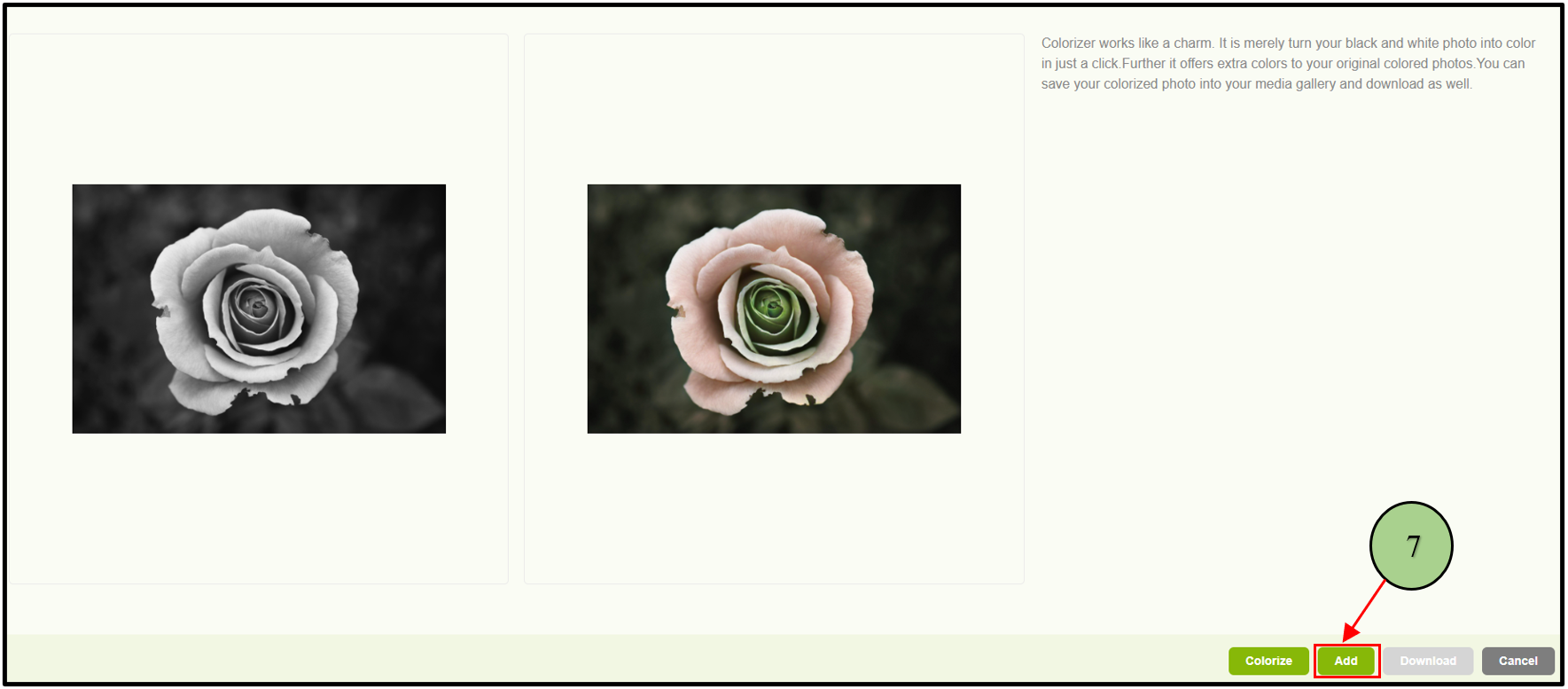
6. Then click the “Colorize” button.
7. Then the user can see the colorized image. Then click the “Add” button to add that colorized image to the multimedia list.
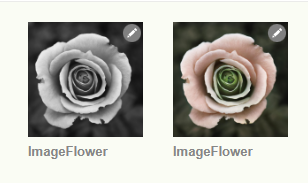
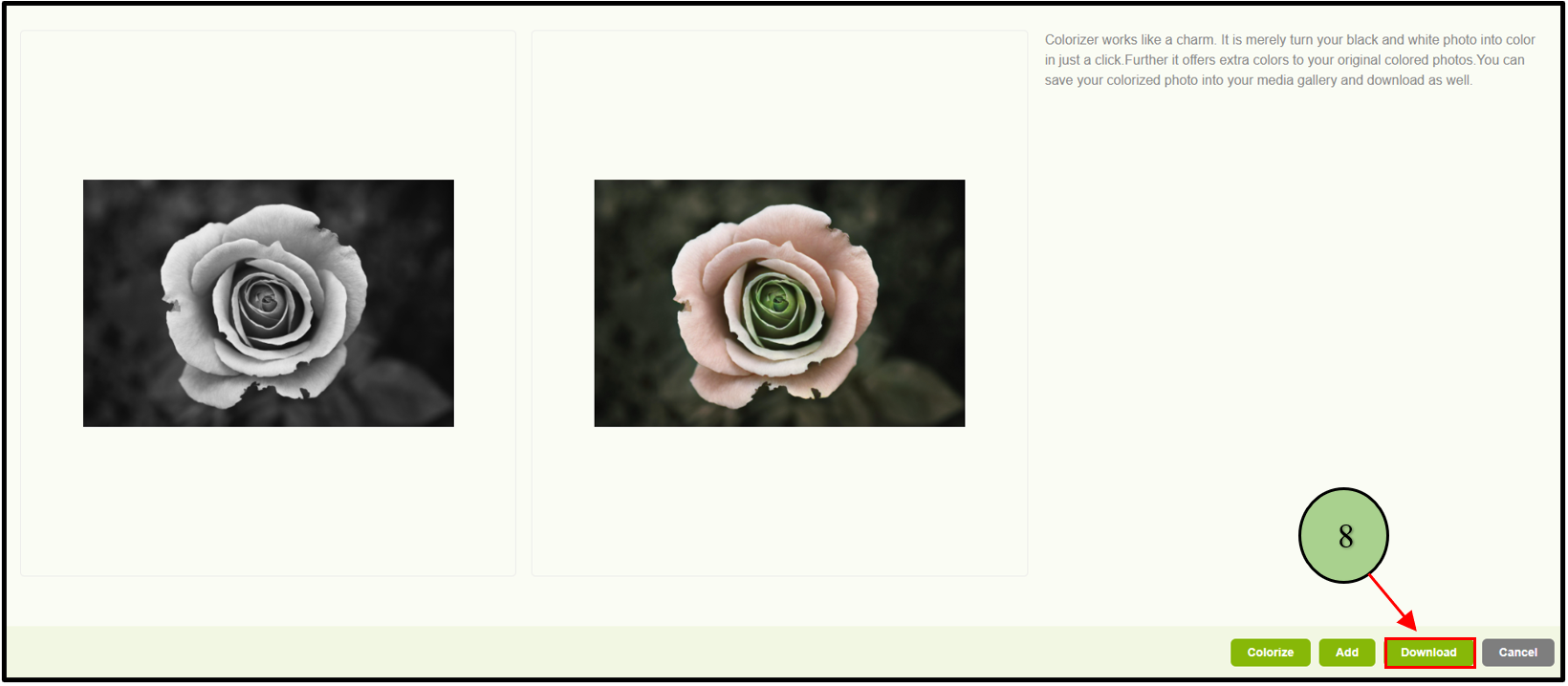
8. After clicking the “Add” button, the system enables the “Download” button. If the user wants to download the colorized image to their local machine, user can click on the “Download” button and download the colored image.
Leave a Reply