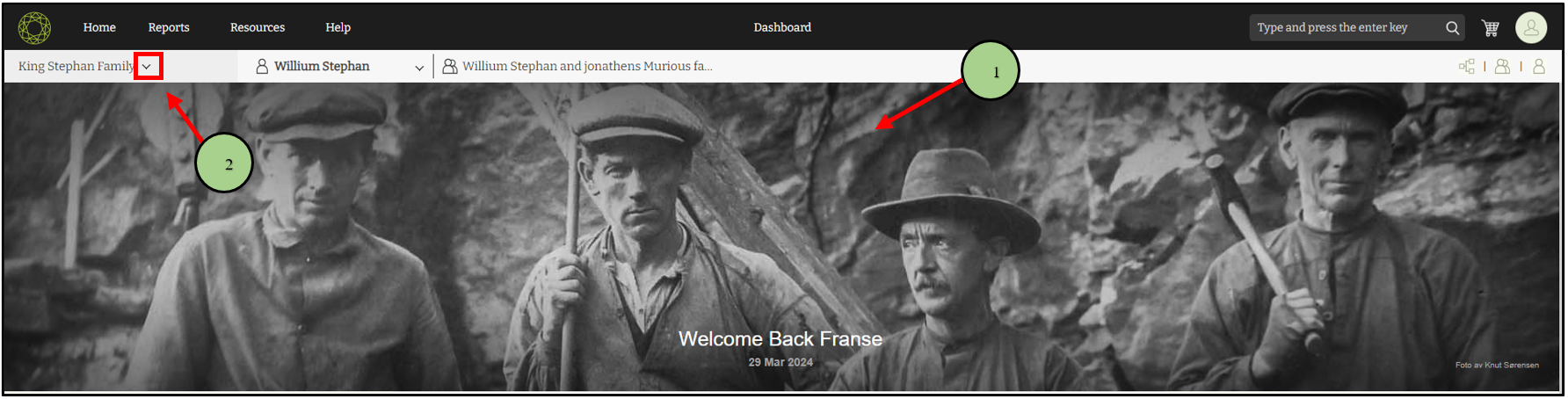
1. Go to the version 10 web application.
2. Click on the drop-down icon near the family tree name.
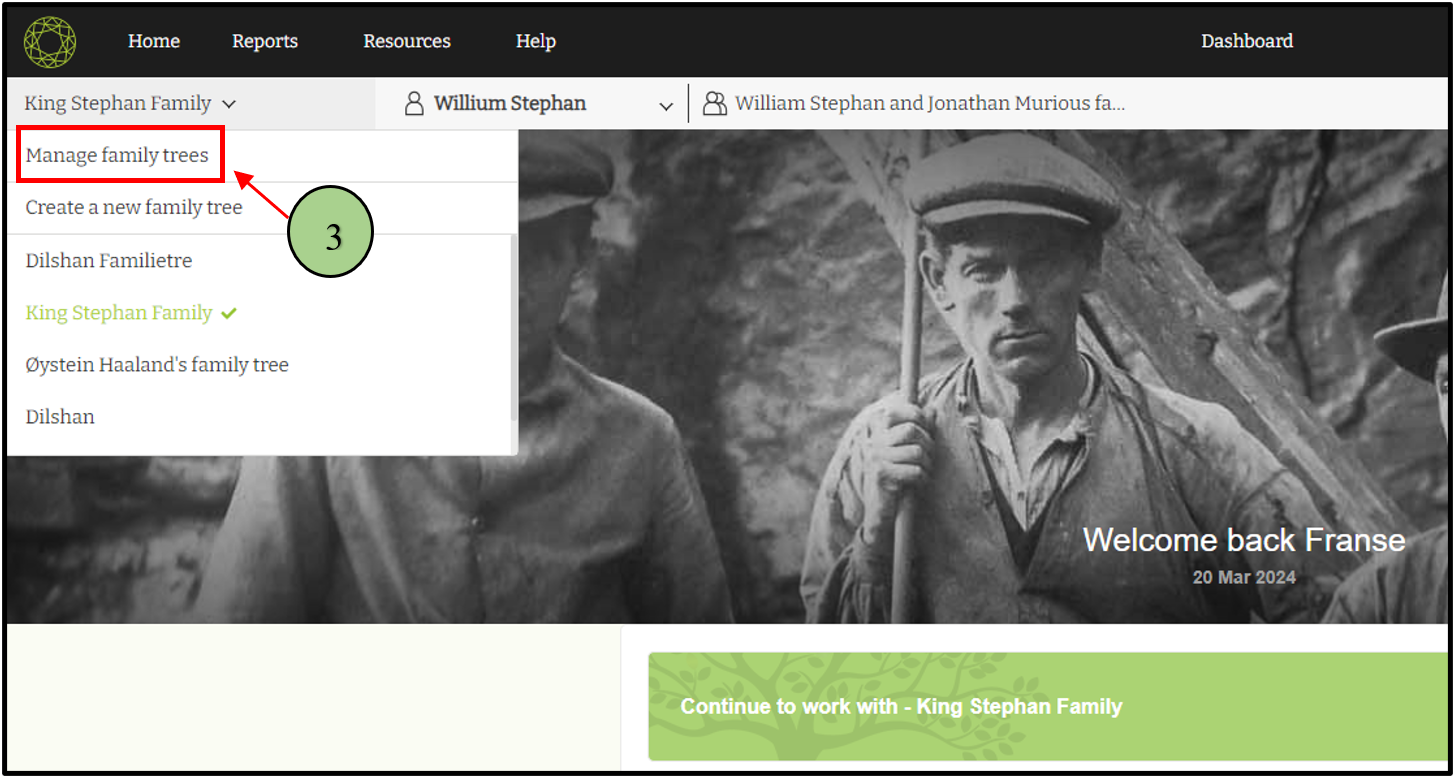
3. Then click ” Manage Family Trees” option.
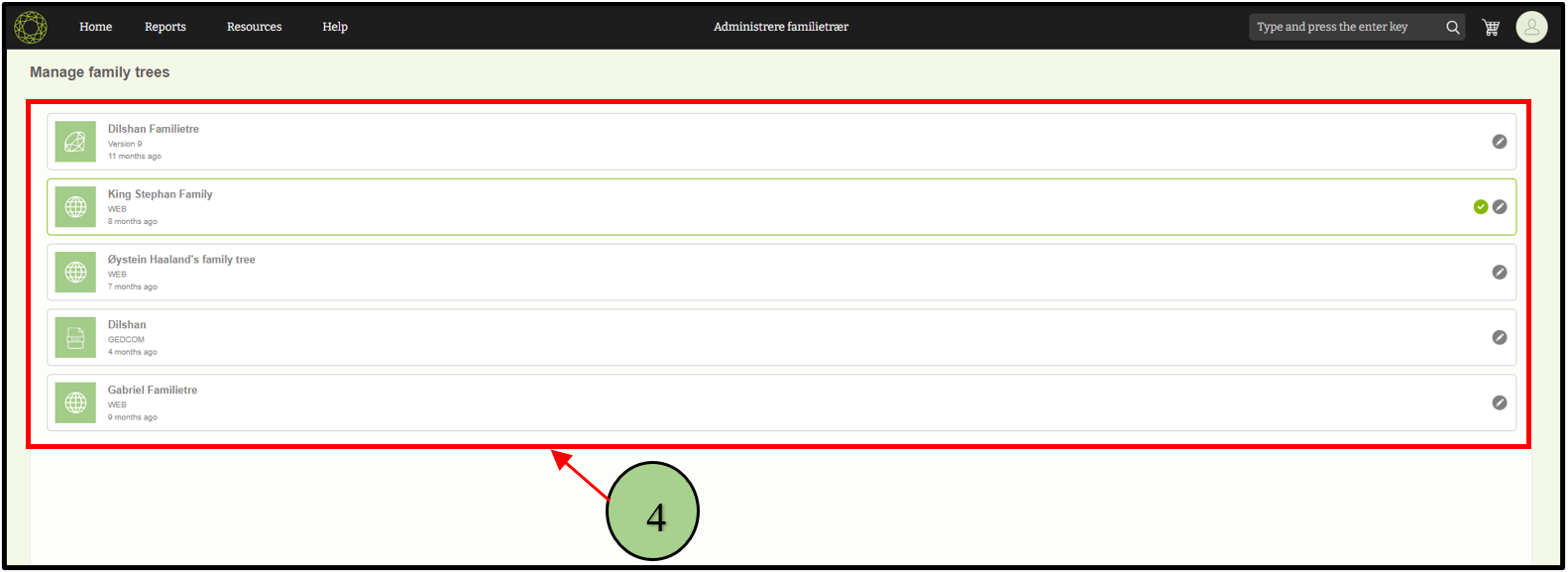
4. Now the already created tree list can be seen
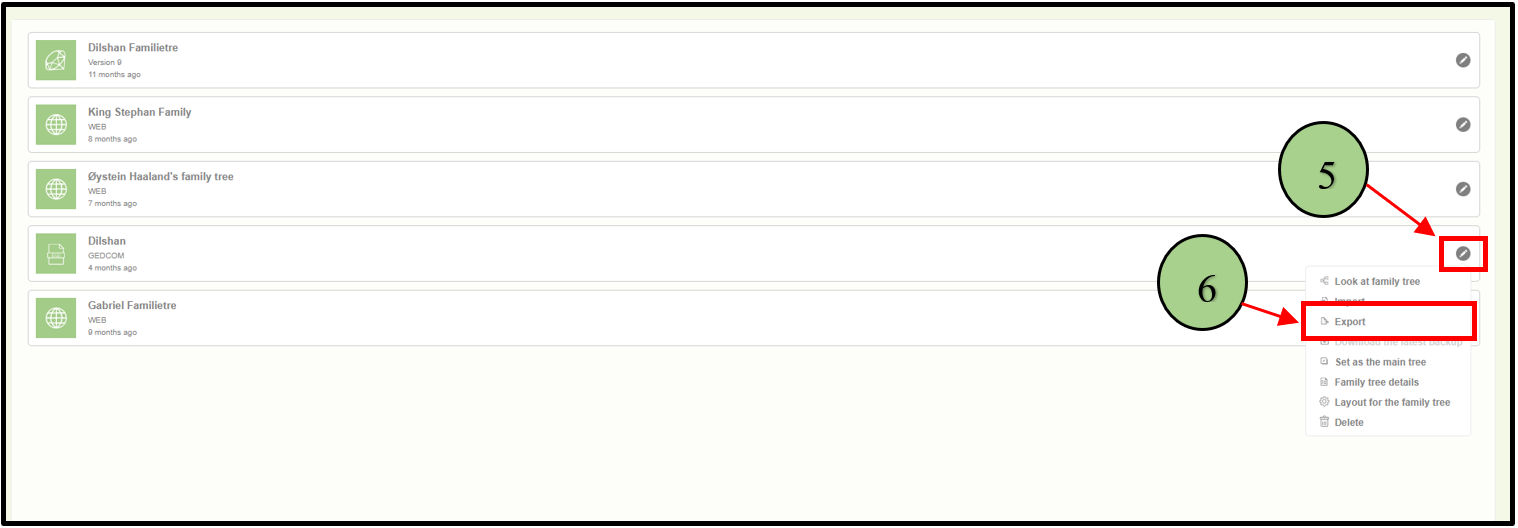
5. Click on the “edit” icon next to the tree that is to be exported by the user.
6. Click on the “Export” option.
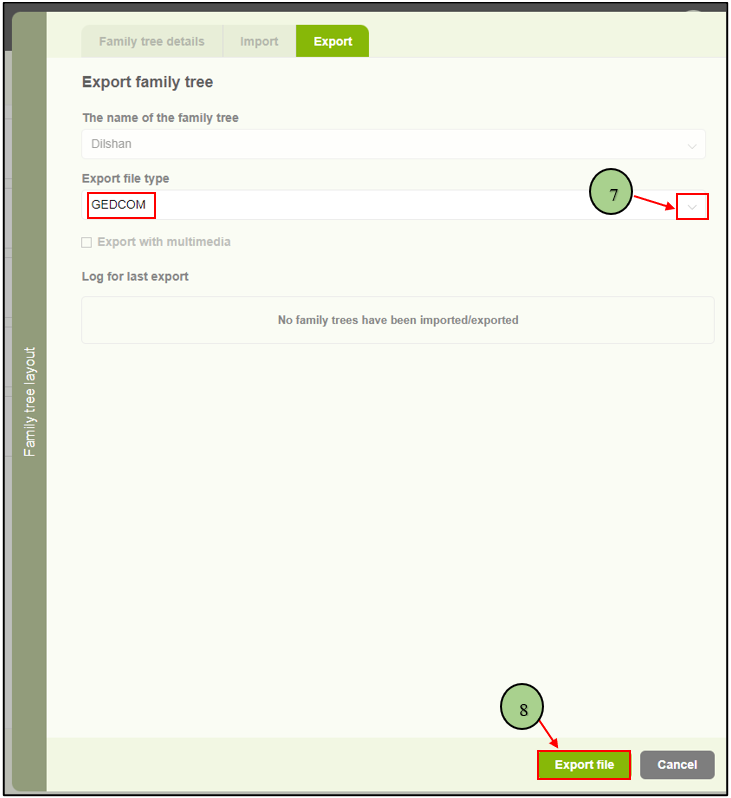
7. After clicking the “Export file” button, a popup window will appear on the right side of the screen.
8. Within the side window, use the drop-down icon to select the “Gedcom” option from the available options.
9. Click on the “Export file” button within this side window to initiate the export process.
10. It will take some time to process the exporting.

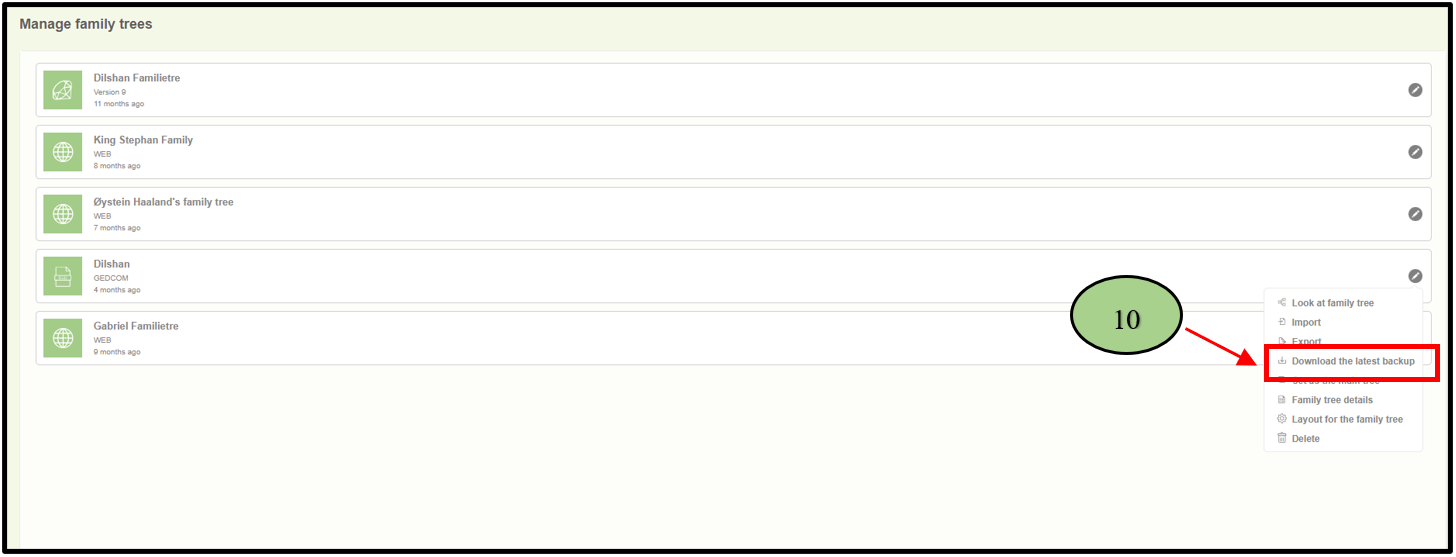
11. After the process has been completed, the user should click on the edit icon and click the “Download the latest backup” option.
12. Then the Gedcom file can be downloaded to the user’s local machine.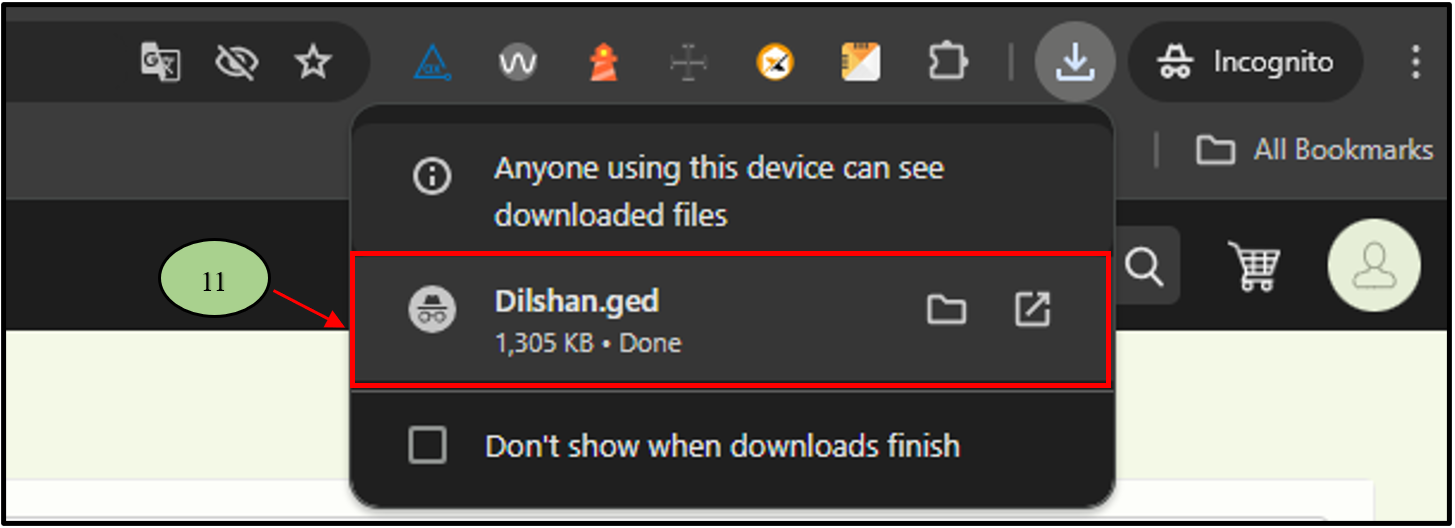
Leave a Reply