The first time you start, all the fields in the family tree will be empty. To expand the tree, first select the field where you want to add a new person. To “select” means to click once with the left mouse button. There are three different color types for a selected field:
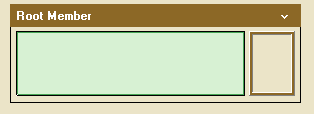
- Light green background with dark green frame means you can register a new name
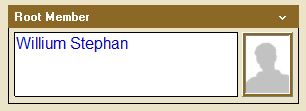
- White background with dark green frame means that it is not possible to enter anything here. Then a name will already be registered in the field.
- It is possible to show a family line between two people, and fields in the Overview form are colored yellow to show this line.
- It is also possible to show descendants and / or ancestors of a key person, and fields in the Overview Form will then be colored green or purple.
When you place the cursor in an empty box, you will see that the field gets a light green background and a dark green frame. This means that you can enter one name in this box. As long as the name field is green, the person is not saved in the application. You must either press Enter or Tab the keyboard, or click with the mouse elsewhere on the screen. Now the field turns white and you have registered a new person in your family tree. It is not more difficult. Continue with your parents and grandparents.
The picture below shows the main character with a white background. Then the person is stored in the family tree.
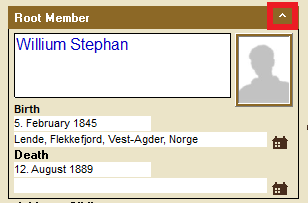
There are several ways to display information in Embla Famile and Genealogy. By clicking on the small white arrow at the top right of the main character box, it is possible to display more information about this person. See the picture below.
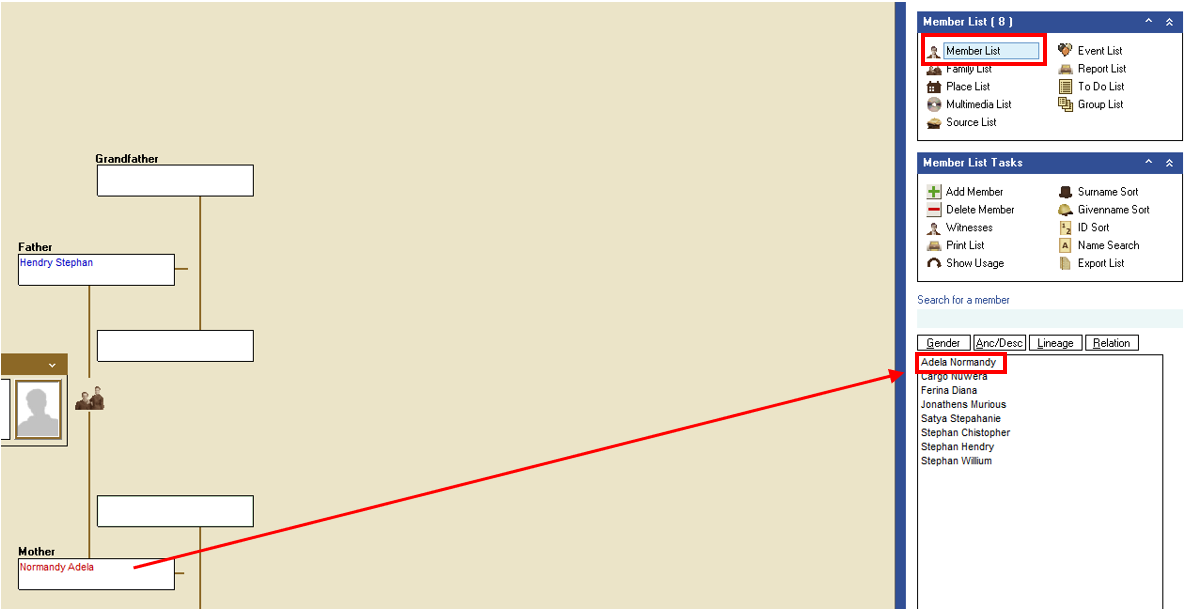
Also note that the name you just registered in the tree is now visible in the person list on the right of the screen.
It is possible to register both first name, middle name, patronymic icon and surname in the Overview form. Take a closer look at the rules for registering several name parts.
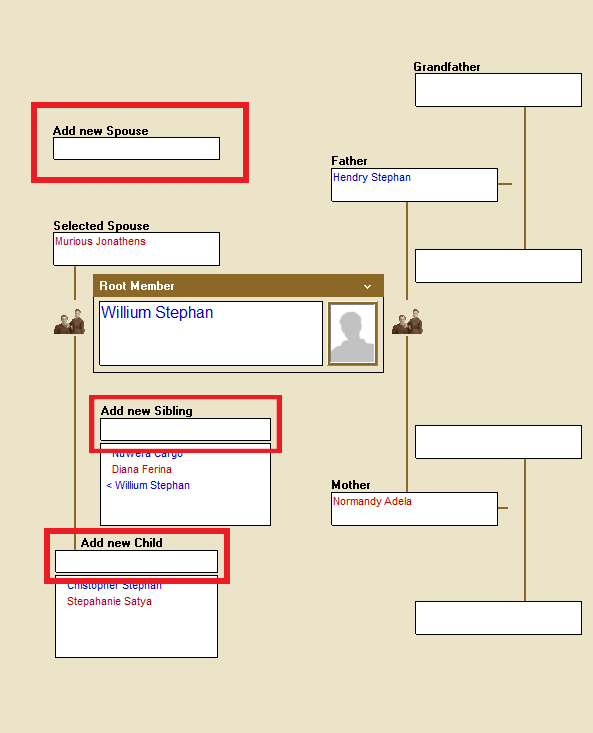
To add a new child, a new sibling, or a new life partner, select the fields named:
- Add children
- Add siblings
- Add relationships
- … and register the name there.
Leave a Reply